Best Photo Editing Apps in 2026: 10 Free & Easy Apps for Better Photos
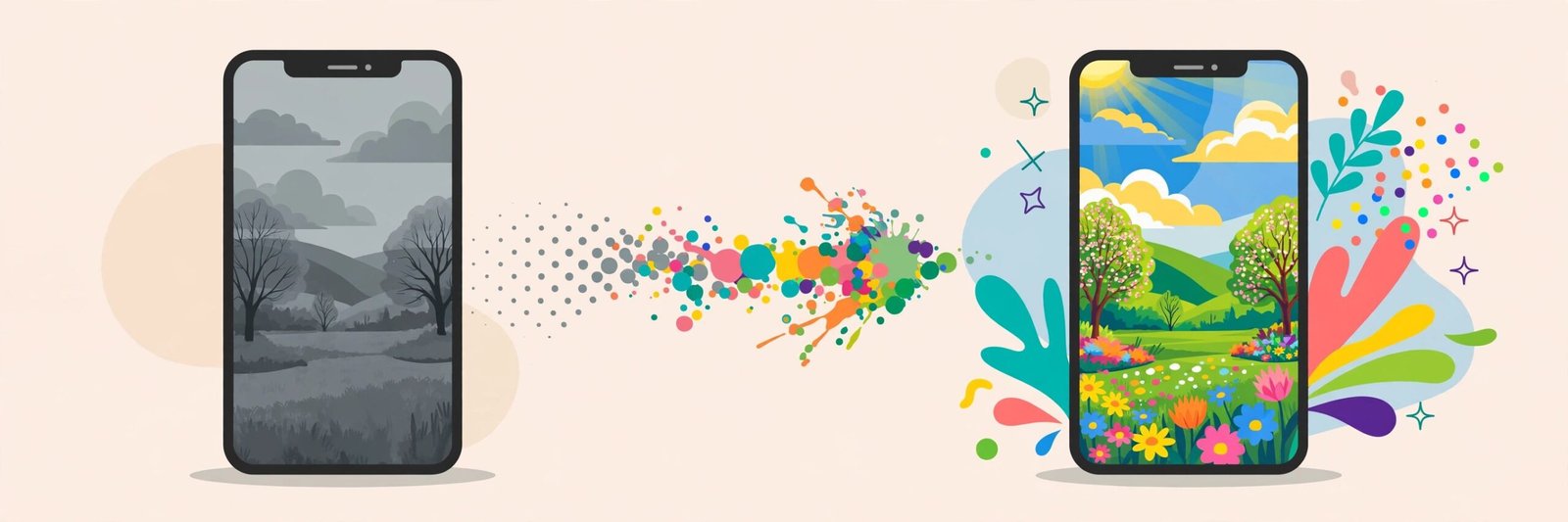
Your phone probably takes good photos already — but a two-minute edit can turn a dull, dark picture into one that looks like it came from a professional camera. Brighter light, richer colour, a straighter horizon and a cleaner background make a bigger difference than most people expect.
The problem is choice. Photo editing apps number in the hundreds, and many hide their best features behind subscriptions. This guide lists ten well-known apps that are free to start with and genuinely useful, from one-tap fixes to near-professional control. Pick the one that matches how you like to edit.
What to Look for in a Photo Editing App
- The basics done well: Brightness, contrast, colour, crop and straighten should be quick and easy.
- One-tap help: Auto-enhance and AI tools save beginners — fixing a dark photo should not take twenty sliders.
- Free without tricks: A good free version should export your full photo without a watermark or a forced tiny size. In most apps below the free version is generous; some advanced tools and filters are paid.
- Easy sharing: Direct export in the right size for Instagram, WhatsApp or printing.
The 10 Best Photo Editing Apps
1. Snapseed
Snapseed, made by Google, is completely free with no ads and no account needed. It combines simple one-tap looks with surprisingly powerful tools like selective editing, healing and perspective correction. Best for: anyone who wants a powerful free editor with no catches, on Android and iPhone.
2. Lightroom Mobile
Adobe Lightroom’s mobile app is the photographer’s favourite. Its free version includes excellent light and colour controls, healing and presets, and it edits photos gently without ruining quality. Best for: people who want to learn real photography editing. Free version available; some features, like certain AI tools and cloud storage, are paid.
3. Google Photos Editor
If your photos already live in Google Photos, its built-in editor may be all you need. One-tap Enhance, suggestions for skies and lighting, crop, filters and markup are all a few seconds away. Best for: quick everyday fixes without installing anything new.
4. Canva
Canva is famous for designs, but its photo editor is excellent for social media: background remover trials, filters, text, frames and templates sized perfectly for every platform. Best for: Instagram posts, thumbnails, posters and anyone who adds text to photos. Free version available; some elements and tools are paid.
5. Picsart
Picsart mixes photo editing with creative fun: stickers, collage maker, drawing tools, effects and AI background changes. Best for: creative social media edits and younger users who enjoy playful styles. Free version available; many premium effects are paid.
6. VSCO
VSCO is loved for its film-like filters that make photos look soft, warm and stylish without looking fake. Best for: Instagram lovers who want a consistent, aesthetic feed. Free version available; most filters and advanced tools need the paid membership.
7. Pixlr
Pixlr works in your web browser and as an app, so you can edit on a computer with no installation. It offers layers, AI cutout tools and thousands of effects in a Photoshop-like layout. Best for: editing on a laptop or Chromebook for free. Free version available; some content is paid.
8. Adobe Express
Adobe Express combines quick photo editing with templates for social posts, flyers and videos. Its one-tap background remover and resize tools are very handy for sellers and small businesses. Best for: small businesses and creators making marketing posts. Free version available; premium assets are paid.
9. Fotor
Fotor is a friendly online and mobile editor with one-tap enhancement, portrait retouching, collage tools and design templates. Best for: portraits, collages and quick online editing. Free version available; some features are paid.
10. Photopea
Photopea is a free web editor that looks and works like Photoshop, opening PSD, RAW and many other file types right in your browser. Best for: advanced users who need layers and professional tools on any computer, free. It shows ads, which keep the free version free.
Beginner Tips for Editing Photos Like a Pro
- Fix light first. Brightness, exposure and shadows make the biggest difference. Do this before touching filters.
- Use filters gently. Turn a filter down to 30–50% strength. Natural almost always looks better than dramatic.
- Straighten and crop. A level horizon and removing distractions at the edges instantly make photos look intentional.
- Keep the original. Always save your edit as a copy, so you can start again differently later.
- Compare before and after. Most apps let you hold a button to see the original. If the edit looks worse, undo a step.
Frequently Asked Questions
What is the best free photo editing app overall?
Snapseed is hard to beat: it is completely free, has no ads, and is powerful yet simple. Lightroom Mobile is the best choice if you want to learn more serious editing.
Which app is best for Instagram photos?
VSCO for film-style filters, Canva for posts with text and templates, and Lightroom Mobile for a consistent colour style across your whole feed.
Can free apps really make photos look professional?
Yes, within limits. Lighting fixes, colour correction, cropping and gentle filters — the core of most professional edits — are all available free. What makes a photo look professional is mostly a careful, natural edit.
Do free photo editing apps add watermarks?
Most apps on this list do not watermark your edited photos. Some may watermark specific premium effects or design elements, so check the export screen before you finish.
Is it better to edit on a phone or a computer?
For social media and everyday photos, a phone is faster and good enough. For detailed work with layers, a browser editor like Photopea or Pixlr on a bigger screen is more comfortable.
Conclusion
Great photo editing is not about using the most expensive app — it is about a few good habits: fix the light, correct the colour, crop with care, and keep it natural. Start with Snapseed or the editor already inside Google Photos, and move to Lightroom Mobile or Photopea when you want more control.
Keep exploring YumPlatter for more app guides and honest comparisons that help you get more from the phone already in your pocket.