
Cybersecurity Tips for Beginners: 12 Simple Ways to Stay Safe Online
Going online is normal life now — banking, shopping, chatting, working and studying all happen on our phones and computers. The good news: staying safe online does not require you to be an expert. Most problems happen because a few basics were skipped, and those basics are easy to learn.
This guide walks you through 12 simple, practical tips — no special software or technical skills needed. Work through them one at a time.
1. Use Strong, Unique Passwords
Your password is the key to your account, so make it a good one. A strong password is long — length matters more than clever tricks — and hard to guess. Avoid names and birthdays.
Most importantly, use a different password for every account. If one website leaks its passwords and you reused the same one everywhere, criminals can try it on your email and banking too — a very common way accounts get taken over.
2. Use a Password Manager
Remembering dozens of unique passwords is impossible — so don’t try. A password manager creates and stores strong passwords for you, and fills them in at log in. You only remember one master password. They are built into most phones and browsers.
3. Turn On Two-Factor Authentication (2FA)
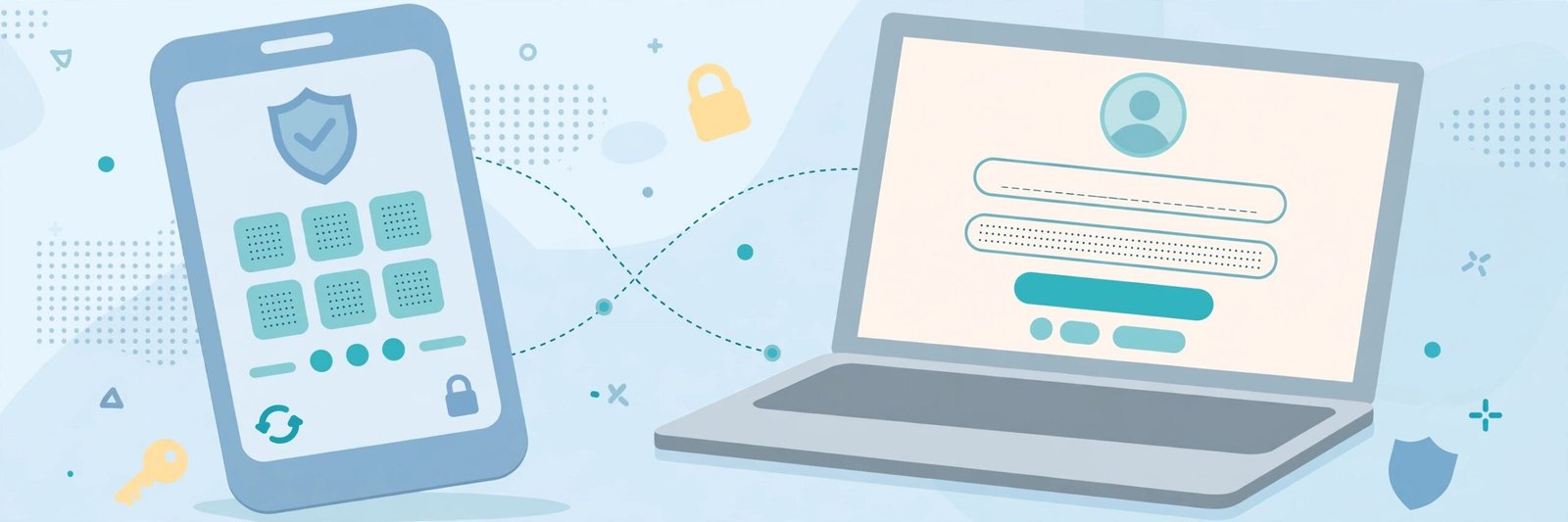
Two-factor authentication adds a second step at sign-in: after your password, you enter a code sent to your phone or shown in an authenticator app. Even if someone steals your password, they cannot get in without that code.
Simple steps:
- Open the security settings of your email account first — the most important one.
- Find “two-step verification” or “two-factor authentication” and switch it on.
- Link your phone or an authenticator app, and save the backup codes somewhere safe.
- Repeat for banking, social media and other important accounts.
4. Keep Software and Devices Updated
Updates fix security holes criminals know how to exploit. An out-of-date device is an open invitation.
Simple steps:
- Turn on automatic updates for your phone’s operating system.
- Update apps through the official app store, automatically where possible.
- Keep your web browser up to date too.
- Restart devices now and then so updates can finish installing.
5. Learn to Spot Phishing Messages
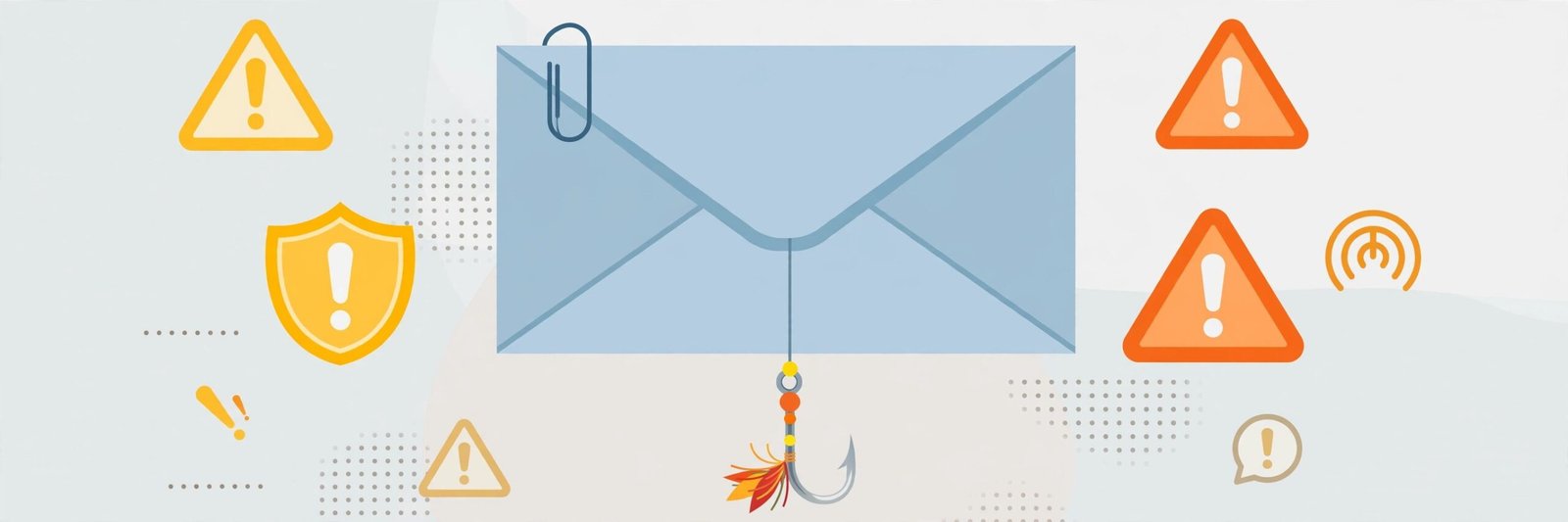
Phishing is a fake message — email, text or social media — pretending to be from a bank or delivery company, trying to trick you into clicking a link or handing over details. Watch for these signs:
- Panic: “Your account will be closed today!”
- Spelling mistakes, or a sender address that looks almost — but not quite — right
- A link asking you to log in or “verify” details urgently
- An unexpected attachment
- A request for your password or card details — real companies do not ask by message
When in doubt, do not click. Open the company’s official app, or type its address into your browser, and check there.
6. Back Up Your Important Files
Backups protect you if your device breaks, gets lost, or is locked by malicious software demanding payment.
Simple steps:
- Choose a backup method — cloud storage, an external drive, or both.
- Turn on automatic photo backup on your phone.
- Copy important documents regularly.
- Unplug an external backup drive when not using it, so problems on the computer cannot reach it.
7. Be Careful on Public Wi-Fi
Free Wi-Fi in cafés and airports is convenient, but you cannot be sure who else is connected. Treat it as public space: fine for news, risky for sensitive tasks.
Simple steps:
- Avoid banking and important logins on public Wi-Fi where you can.
- Use mobile data instead for anything sensitive — it is far safer.
- Turn off auto-connect to open networks.
- Forget the network afterwards so your device does not rejoin it silently.
8. Only Install Apps from Official Stores
Official app stores check their apps, removing most dangerous ones. Downloading apps from random websites bypasses those checks. Before installing, check the permissions requested — a torch app need not read your contacts.
9. Lock Your Devices
A short auto-lock time, plus a PIN, fingerprint or face unlock, stops casual access if your phone is left behind. Use a PIN of at least six digits.
10. Be Careful What You Share on Social Media
Details like your birth date, home address and holiday dates can help criminals guess passwords or know when your house is empty. Check your privacy settings and think before sharing.
11. Watch Out for “Too Good to Be True” Offers
Fake prizes and unbelievable discounts are classic scams. If an offer pressures you to act immediately or pay to claim a prize, it is almost certainly a trick.
12. Know What to Do If Something Goes Wrong
If an account may be hacked: change its password from a clean device, turn on two-factor authentication, and remove settings you do not recognise. If money is involved, contact your bank promptly via its official website or card number. Act quickly to limit damage.
Frequently Asked Questions
Do I need to buy expensive antivirus software?
For most beginners, the protection built into modern phones and computers, kept up to date, is a sensible starting point. Safe habits matter more than any single product.
What is the single most important thing I can do?
Turn on two-factor authentication for your email, and use unique passwords everywhere. Your email can reset almost every other account, so protecting it protects everything else.
How can I tell if a website is safe to buy from?
Check the address starts with “https” with a padlock symbol, buy from well-known sellers, and read recent reviews. Be wary of social media adverts offering unrealistically low prices.
Someone I know sent me a strange link. What should I do?
Their account may have been taken over. Do not click. Contact them a different way — a call, for example — and let them know.
Conclusion
Staying safe online is not about being an expert; it is about a handful of habits done consistently: unique passwords, two-factor authentication, regular updates, a careful eye for phishing, backups, and caution on public Wi-Fi. Pick two or three tips today, then add the rest over the week. Together they make you a much harder target. Find more jargon-free guides like this one here on YumPlatter — and stay safe.