
Best Password Managers in 2026: Keep Every Login Safe
The average person has dozens of online accounts — email, banking, shopping, social media, work tools, streaming services, and more. Remembering a strong, different password for every single one is impossible for a normal human brain. So most people cheat: they reuse the same password everywhere, or pick simple ones like a pet’s name plus a number.
That shortcut is exactly what criminals rely on. When one website is hacked, attackers test the leaked email and password combinations on hundreds of other sites. A password manager removes the problem completely. It remembers everything for you, so every account can have its own long, random password — and you only need to remember one.
What a Password Manager Actually Does
A password manager is a secure app that stores all your logins in an encrypted vault — think of a digital safe that only you can open. You unlock it with one strong “master password,” and the manager does the rest:
- It remembers your passwords for every website and app, and fills them in automatically when you log in.
- It creates strong passwords using a built-in generator — long, random strings no human could guess or remember.
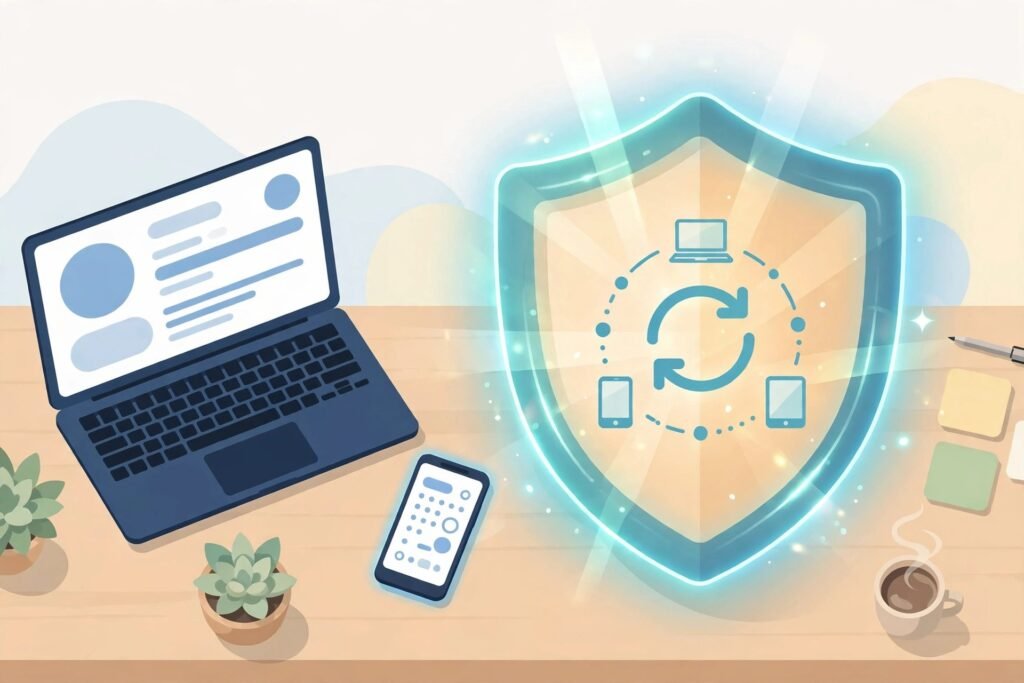
- It syncs across your devices, so a password saved on your laptop is ready on your phone too. Most can also store secure notes and card details for filling in forms.
The vault is protected with strong encryption, which means your passwords are scrambled in a way that cannot be read without your master password — not even by the company that makes the app.
The Best Password Managers to Consider
These are well-known, widely trusted options. Prices and features change over time, so check current plans on each official website before deciding.
Bitwarden
Bitwarden is a favourite for beginners because its free tier is generous and the app works on phones, computers, and browsers. It is a great first password manager if you want something simple that just works, and there are paid plans for families and extra features.
1Password
1Password is popular with families and teams thanks to its clean design and easy sharing options, which let you share a login with a partner or family member without revealing the actual password in a message. It is a paid service, so check current plans.
Dashlane
Dashlane focuses on a friendly, guided experience, with a polished app and extra tools aimed at keeping your digital life tidy.
LastPass
LastPass is one of the longest-running names in this space, with apps for almost every platform and both free and paid tiers.
Keeper
Keeper is known for its strong focus on security features and simple design, with options aimed at individuals, families, and businesses.
Apple iCloud Keychain
If you use an iPhone, iPad, and Mac, you already have a built-in option. iCloud Keychain saves passwords, suggests strong ones, and fills them in across your Apple devices at no extra cost. Its main limitation is that it works best inside the Apple world.
Google Password Manager
Android and Chrome users also have a built-in choice. Google Password Manager saves and fills passwords in Chrome and Android apps, checks for weak or reused passwords, and is free with your Google account. Like Apple’s option, it is most comfortable if you live mainly in one company’s ecosystem.
How to Choose the Right One
- Your devices: If you mix Windows, Android, iPhone, and Mac, choose a manager with apps for all of them. If you are all-Apple or all-Google, the built-in options may be enough.
- Free or paid: A free tier is perfect for starting. Paid plans usually add family sharing, more storage, or priority support — check current plans rather than old reviews.
- Ease of use: The best manager is the one you will actually use. Try one for a week and see if logging in feels easier, not harder.
- Security basics: Look for two-factor authentication for the vault itself, and a company that is open about how its encryption works.

How to Set Up a Password Manager, Step by Step
- Install the app on your phone and computer, and add the browser extension.
- Create your master password. Make it long and memorable — a phrase of several random words works well. This is the one password you must never forget, because it usually cannot be reset like a normal login.
- Turn on two-factor authentication for the vault, and unlock it with your fingerprint or face where available.
- Add your accounts. Start with the most important ones: email first, then banking and shopping. Let the manager save each login as you visit the site, or import them from your browser.
- Change weak and reused passwords. Use the built-in generator to replace them, a few accounts at a time. If you want strong passwords for anything else, the free Password Generator tool here on YumPlatter can help too.
Honest Cautions Before You Start
A password manager is a big security improvement, but it is not magic. Your master password becomes the key to everything, so it must be strong, unique, and never used anywhere else. Write it down on paper and keep it somewhere safe at home while you memorise it — losing it can mean being locked out of your own vault. Finally, stay alert to fake apps: always download from the official app store or the company’s real website.
Frequently Asked Questions
Are password managers safe?
Yes. Reputable managers encrypt your vault so even the company cannot read it. For most people, using one is far safer than reusing simple passwords.
What if I forget my master password?
In most cases it cannot be recovered, because that is what keeps the vault secure. Choose a memorable phrase, and keep a written copy somewhere safe at home until you know it by heart.
Is a free password manager good enough?
For many people, yes. Free tiers from established names cover the basics well. Paid plans mainly add convenience, family sharing, and extras — check current plans to see what you actually need.
Can I use the one built into my phone or browser?
Absolutely. Apple iCloud Keychain and Google Password Manager are solid starting points, especially if you mostly use one ecosystem. A separate app gives you more flexibility across different brands of devices.
How many passwords should I change first?
Start with your main email account, because email can reset almost everything else. Then banking, shopping, and social media. A few a day is fine — you will be done soon.
Conclusion
The best password manager is the one that makes your life easier and your accounts safer. Whether you choose Bitwarden for its free tier, 1Password or Keeper for family features, Dashlane or LastPass for their polished apps, or the built-in Apple and Google options, the important step is simply to start. Give every account its own strong password, protect the vault with a memorable master password and two-factor authentication, and password stress becomes a thing of the past.