
How to Speed Up Your Laptop: 12 Easy Fixes That Really Work
A slow laptop is frustrating — but it rarely means you need a new one. Most laptops slow down because of clutter: too many apps starting at once, a nearly full drive, an overloaded browser, or updates that never got installed. The good news is that the fixes below are free, safe, and take only a few minutes each. Work through them in order and stop whenever your laptop feels fast enough again.
Quick Wins: Five Minutes, Real Difference
1. Stop apps from launching at startup
Many apps quietly add themselves to your startup list, so ten programs fight for power the moment you log in. Turn off anything you do not need open all day, like chat apps, game launchers and updaters — keep your antivirus on.
- On Windows, open Settings > Apps > Startup and switch off the apps you do not need at login.
- On a Mac, open System Settings > General > Login Items and remove unneeded apps.
- Restart and feel how much faster the desktop becomes ready to use.
2. Restart properly — and install every update
Sleep is not a restart. A full restart clears memory and finishes pending changes, and updates fix bugs that quietly slow things down.
- Save your work and choose Restart, not Shut down followed by power on (on Windows, Restart is the one that fully refreshes the system).
- On Windows, go to Settings > Windows Update > Check for updates. On a Mac, go to System Settings > General > Software Update.
- Install everything offered, then restart again if asked.
3. Switch to the Best performance power mode
Laptops often run in a balanced or battery-saving mode that deliberately slows the processor.
- On Windows, open Settings > System > Power & battery and set Power mode to Best performance (the exact wording may vary).
- On a Mac, check System Settings > Battery and make sure Low Power Mode is off, at least while you are plugged in.
Free Up Space and Remove the Clutter
4. Clean up your storage
A nearly full drive slows everything, because the system needs free space to work. Aim to keep at least 10–15% of your drive empty.
- On Windows, open Settings > System > Storage to see what is taking space, and turn on Storage Sense to clean temporary files automatically.
- Empty the Recycle Bin (or Trash on Mac) and clear your Downloads folder of old installers and videos.
- Move large photo and video collections to an external drive or cloud storage.
5. Uninstall apps you never use
Old games, trial software and duplicate tools run background services and eat space.
- On Windows, open Settings > Apps > Installed apps and sort by size. On a Mac, drag unused apps from Applications to the Trash.
- Uninstall anything you have not opened in months.
- Restart afterwards so background helpers stop too.
Make Your Browser Behave
6. Tame your open tabs
Every open tab uses memory, and dozens of them can bring a good laptop to its knees.
- Bookmark the pages you want to keep and close the rest.
- In Chrome or Edge, turn on the Memory Saver option in the browser’s performance settings so inactive tabs sleep instead of consuming memory.
- Give your browser a fresh start once a day instead of leaving it open for weeks.
7. Remove extensions you do not need
Extensions run on every page you visit. A few are useful; the rest slow pages down, and some are little more than adware.
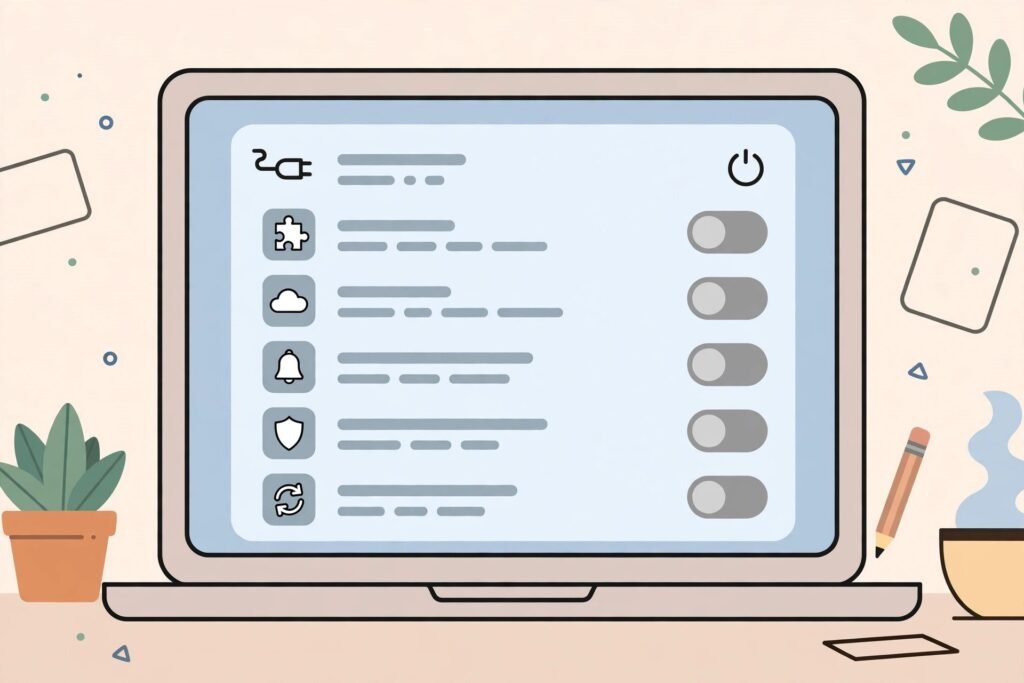
- Click the puzzle-piece (extensions) icon in your browser toolbar.
- Remove anything you do not recognise or no longer use.
- Keep only essentials, like your password manager.
Check for Hidden Problems
8. Run a full malware scan
Malware that mines, spams or spies in the background is a classic hidden cause of sudden slowness.
- On Windows, open Windows Security > Virus & threat protection > Scan options and run a Full scan.
- On other systems, run the built-in security tools or one reputable scanner.
- Remove anything found, then restart and scan once more.
9. Find the resource hogs
If one app is eating your processor or memory all day, no other fix will help much.
- On Windows, press Ctrl + Shift + Esc to open Task Manager. On a Mac, open Activity Monitor from Applications > Utilities.
- Sort by CPU and then by Memory to see what is at the top.
- Update, restart or replace any app that is constantly near the top.
10. Turn down visual effects
Animations, transparency and shadows look nice, but on older hardware they cost real speed.
- On Windows, search for “Adjust the appearance and performance of Windows” and choose “Adjust for best performance” — or simply switch off transparency and animation effects under Settings > Accessibility > Visual effects.
- On a Mac, go to System Settings > Accessibility > Display and turn on Reduce motion and Reduce transparency.
11. Let your laptop breathe
When a laptop overheats, its processor deliberately slows down to protect itself.
- Use the laptop on a hard, flat surface — not on a bed or sofa where the vents are blocked.
- Clear dust from the vents with a can of compressed air.
- If the fans roar constantly even when you do almost nothing, check tip 9 again for a runaway app.
The Honest Upgrade: SSD and RAM
12. If software fixes are not enough, upgrade the drive
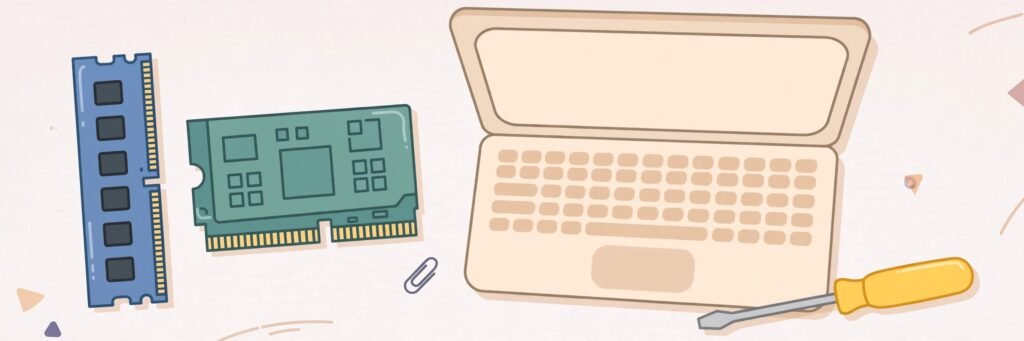
Here is the honest part: no setting can make very old hardware feel new. But one upgrade comes close. If your laptop still has a spinning hard drive (HDD), replacing it with an SSD is the single biggest speed upgrade there is — startup times shrink from minutes to seconds and every app opens faster. Adding more RAM helps too, if Task Manager shows memory nearly full while you work. Both upgrades usually cost far less than a new laptop — but not every model allows them, since many slim laptops are sealed. Check your exact model first, back up your files, and ask a repair shop if you are not comfortable opening the machine yourself.
Conclusion
Start with the free fixes: clean up startup apps, install updates, free some storage and calm your browser down. Most “slow” laptops feel like themselves again after just those steps — and if yours still struggles, an SSD can honestly give it a second life. For more plain-English guides like this one, keep exploring YumPlatter.