
Windows 11 Hidden Features: 15 Tricks Most People Miss
Windows 11 looks clean and simple on the surface, but some of its best tools are hiding one click below it. You do not need to install anything or pay for upgrades — these 15 features are already on your PC, waiting to be switched on. A quick note before we start: a few features roll out gradually with updates and can vary by region or device, so if something is missing, run Windows Update first and check again.
Organise Your Screen Like a Pro
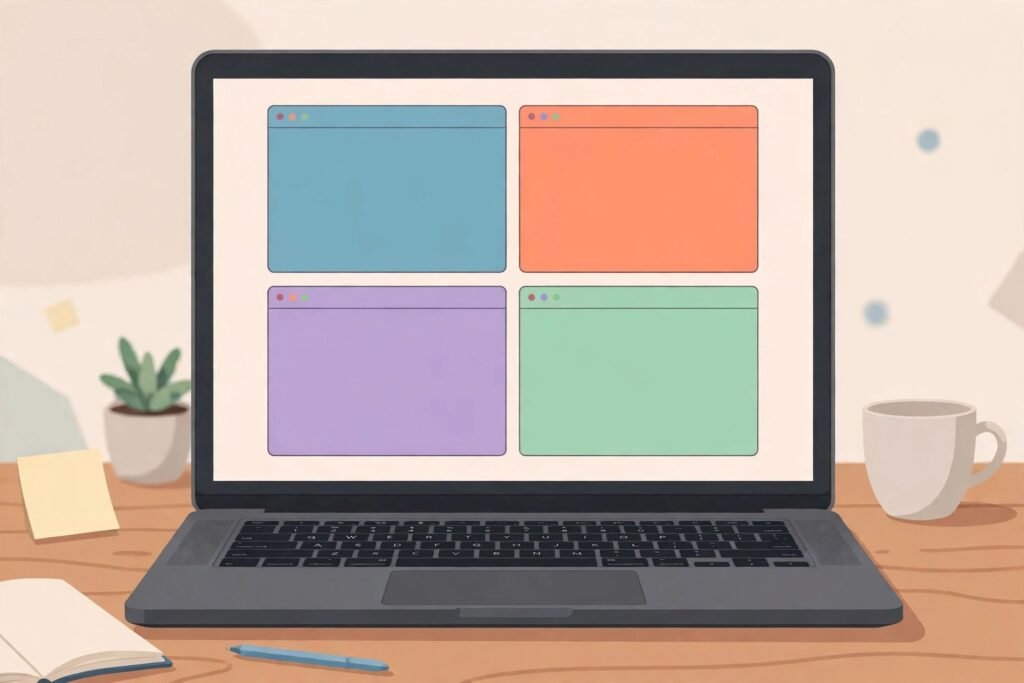
1. Snap layouts — tidy windows in two clicks
Stop dragging and resizing windows by hand. Windows can arrange them into neat grids for you.
- Hover your mouse over the maximise button of any window.
- Pick a layout from the options that appear, then click other windows into the empty zones.
2. Virtual desktops — a separate desk for work and play
Keep your job on one desktop and your personal apps on another, and switch between them instantly.
- Press Windows key + Tab and click “New desktop”.
- Drag apps onto the desktop you want, or right-click an app in that view to move it.
- Switch desktops with Ctrl + Windows key + Left or Right arrow, and right-click a desktop to rename it.
3. Shake a window to minimise everything else
Grab one window, give it a little shake, and every other window disappears from the screen. Shake it again and they all come back.
- Open Settings > System > Multitasking.
- Turn on “Title bar window shake”.
- Now grab a window’s title bar with the mouse and shake it side to side.
Type, Copy and Paste Faster
4. Clipboard history (Windows key + V)
Normally your clipboard remembers only the last thing you copied. Clipboard history remembers many items — text, links and images — so you can paste something you copied an hour ago.
- Press Windows key + V and click Turn on the first time.
- Copy things as usual; later, press Windows key + V again and pick any earlier item to paste.
- Use the pin icon on items you paste often, like your address, so they are never cleared.
5. Voice typing (Windows key + H)
Tired of typing a long email? Just say it. Windows turns your speech into text in almost any app.
- Click into any text box — an email, a document, a chat.
- Press Windows key + H and click the microphone button (or press Windows key + H again) and start talking.
- Open the little settings gear on the voice typing panel to switch on automatic punctuation.
6. The emoji, GIF and symbols panel (Windows key + .)
You are not limited to the characters on your keyboard.
- Press Windows key + . (full stop) anywhere you can type.
- Browse emojis, GIFs, and symbols like ©, ™ and → that are otherwise painful to find.
Built-In Tools Hiding in Plain Sight
7. Record your screen with the Snipping Tool
The Snipping Tool is no longer just for screenshots — it can record a video of your screen, perfect for showing someone how to do something.
- Open the Snipping Tool from the Start menu.
- Click the video camera icon, then “New”, select the area of the screen, and press Start.
8. Tabs in File Explorer and Notepad
Just like a browser, your file windows can have tabs, so ten open folders become one tidy window.
- In File Explorer, press Ctrl + T or right-click a folder and choose “Open in new tab”.
- In Notepad, use the + button for a new tab — and Notepad now keeps your unsaved notes when you close it, in recent versions.
9. Focus — quiet the noise while you work
Focus helps you get things done by silencing notifications for a set time.
- Open Settings > System > Focus, or open the Clock app and choose Focus sessions.
- Set a duration and start; Do Not Disturb turns on automatically, and the Clock app version adds short breaks and daily goals.
Your Phone and PC, Together
10. Phone Link — your phone on your PC screen
Answer messages, see photos and check notifications without picking up your phone.
- Open the Phone Link app on your PC and the “Link to Windows” companion app on your phone (it is built into many Android phones).
- Follow the pairing steps on both screens.
- Note that features vary: Android phones get the fullest set, while iPhone support is more limited.

11. The Widgets board (Windows key + W)
Your weather, calendar, to-do list and headlines in one glanceable panel.
- Press Windows key + W, or click the weather widget at the left of the taskbar.
- Use the settings/profile options in the board to add, remove and rearrange widgets so it shows what you actually care about.
Everyday Extras Worth Turning On
12. The secret Start menu (Windows key + X)
There is a second, power-user menu hiding behind the Start button.
- Right-click the Start button, or press Windows key + X.
- Jump straight to Settings, Device Manager, Disk Management, Terminal and other tools without searching for them.
13. Dynamic Lock — your PC locks when you walk away
If your phone is in your pocket, your PC can notice you have left and lock itself.
- Pair your phone with the PC over Bluetooth.
- Go to Settings > Accounts > Sign-in options and, under Dynamic lock, tick “Allow Windows to automatically lock your device when you’re away”.
14. Scroll a window just by hovering over it
No more clicking a window first just to scroll it — useful when a document sits beside your browser.
- Open Settings > Bluetooth & devices > Mouse.
- Turn on “Scroll inactive windows when hovering over them”.
15. Night light on a schedule
A warmer screen is easier on your eyes in the evening, and Windows can switch automatically at sunset.
- Open Settings > System > Display > Night light.
- Turn it on and choose “Schedule night light” — pick sunset to sunrise, or set your own hours.
Conclusion
Snap layouts, clipboard history, voice typing, screen recording, Focus, Phone Link — none of these need new software, just a minute of exploring. Pick three tricks from this list today and Windows 11 will feel noticeably smarter by tonight. For more simple guides that make your everyday tech easier, keep reading YumPlatter.