
Google Chrome Tips and Tricks: 15 Tricks to Browse Faster and Smarter
Google Chrome is the world’s most popular web browser, but most of us only use a tiny part of what it can do. Hidden inside are simple tricks that save time, keep your tabs tidy and make everyday browsing much smoother. You do not need to be a computer expert to use them — each trick below takes less than a minute to learn.
We have grouped these 15 Google Chrome tips and tricks into tab tricks, speed tricks and smarter browsing habits. Try a few today and you will feel the difference immediately.
Tab Tricks: Keep Your Tabs Under Control
1. Reopen a Tab You Closed by Accident
Closed the wrong tab? Press Ctrl + Shift + T on Windows (or Cmd + Shift + T on a Mac). Chrome brings the tab back exactly as it was. Press it again to reopen the one before that.
2. Pin Your Everyday Tabs
Right-click a tab and choose Pin. The tab shrinks to a small icon and stays at the left of your tab bar. Pinning email, calendar or your favourite news site keeps them handy without taking much space.
3. Group Related Tabs Together
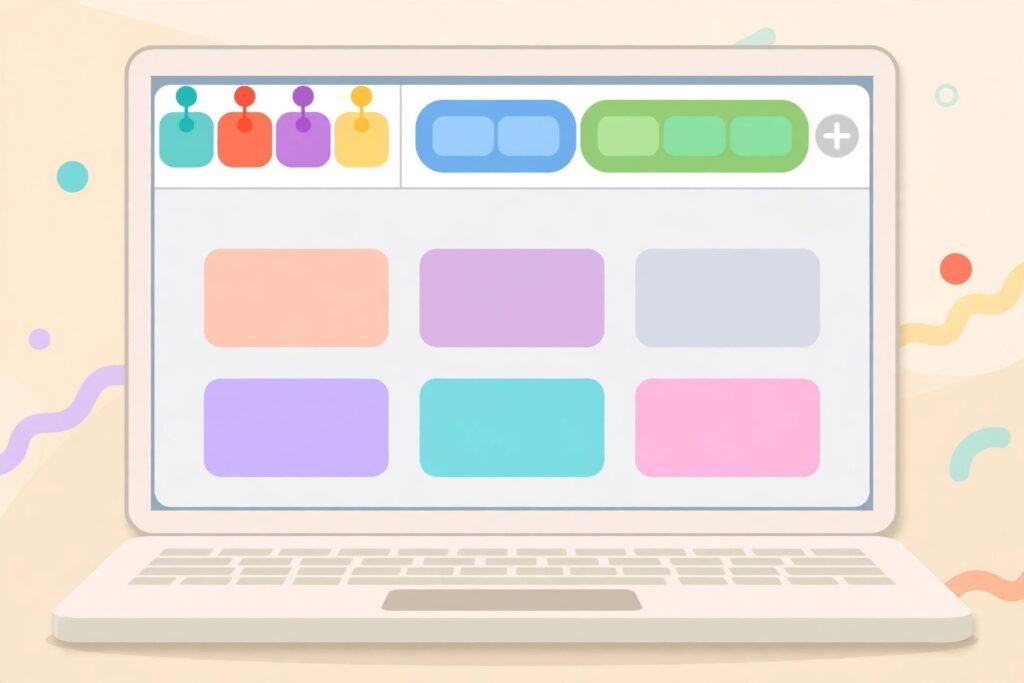
Right-click a tab and select Add tab to new group. Give the group a name and a colour — for example, “Shopping” or “Work Research.” You can collapse a group with one click, which is wonderful when you have many tabs open.
4. Search Your Open Tabs
Click the small down-arrow at the top corner of Chrome to see a list of all open tabs, with a search box. When you have twenty tabs open, this finds the right one in seconds.
5. Mute a Noisy Tab
A video starts playing loudly on some page? Right-click its tab and choose Mute site. No more hunting for the tiny speaker icon on the page.
Speed Tricks: Browse Faster Every Day
6. Use the Address Bar as a Calculator and Converter
Chrome’s address bar (called the Omnibox) is smarter than it looks. Type a sum like 45*12 or a conversion like 10 dollars in pounds, and the answer appears before you even press Enter. You can also type a website’s name and press Tab to search inside that site directly.
7. Search Any Word with One Drag
Highlight any word or sentence on a page, then right-click and choose Search Google for… — or simply drag the highlighted text up into the address bar. It is quicker than opening a new tab and typing.
8. Learn Five Keyboard Shortcuts
Shortcuts save small seconds that add up all day:
- Ctrl + T — open a new tab
- Ctrl + W — close the current tab
- Ctrl + Shift + N — open an Incognito window
- Ctrl + L — jump to the address bar
- Ctrl + D — bookmark the page
On a Mac, use Cmd instead of Ctrl.
9. Check What Is Slowing Chrome Down
Chrome has its own task manager. Press Shift + Esc to see which tab or extension is using the most memory. Close the heavy one and Chrome often feels fast again.
10. Use Profiles for Work and Home
Click your profile picture in Chrome and add a second profile. Each profile keeps its own bookmarks, history and accounts separate. It is perfect for keeping work browsing and personal browsing apart on the same computer.
Smarter Browsing Habits
11. Show the Bookmarks Bar
Press Ctrl + Shift + B to show the bookmarks bar under the address bar. Save your most-used sites there and rename them with short names — or no name at all — to fit more in.
12. Save Pages to Your Reading List
Found an interesting article but have no time now? Click the star area and choose Add to reading list (in newer versions it lives in the side panel). Your saved pages wait for you, even across devices when you are signed in.
13. Send a Page to Your Phone
Reading on your computer but leaving the house? Right-click the page and choose Send to your devices, then pick your phone. The page appears there as a notification. You need to be signed in to Chrome on both devices.
14. Use Chrome’s Built-in Password Checkup
Chrome can save your passwords and warn you if one appears in a known data leak. Visit chrome://settings/passwords to see saved logins and any security warnings. Using strong, different passwords for each site — ideally with a password manager — keeps you much safer.
15. Be Picky with Extensions
Extensions add useful features, but too many slow Chrome down and some ask for more access than they need. Review yours at chrome://extensions every few months. Keep only the ones you truly use, and remove the rest.
Three Settings Worth Changing
While you are exploring, these quick settings make browsing nicer:
- Continue where you left off: In Settings > On startup, choose this so Chrome reopens your tabs after a restart.
- Ask where to save downloads: In Settings > Downloads, turn this on if you dislike hunting for files later.
- Block third-party cookies where sensible: In Settings > Privacy and security, review cookie choices for better privacy. Some sites need cookies to work, so adjust if a site misbehaves.

Frequently Asked Questions
How do I update Chrome to get the latest features?
Chrome usually updates itself. To check manually, click the three-dot menu, then Help > About Google Chrome. Chrome will look for updates and ask you to restart if one is ready.
Does Incognito mode make me invisible online?
No. Incognito only stops Chrome from saving your history, cookies and form data on that device. Websites, your internet provider and your employer or school can still see your activity.
Why is Chrome using so much memory?
Each tab and extension runs separately, which makes Chrome stable but hungry. Close tabs you are not using, remove unneeded extensions, and use the Shift + Esc task manager to find heavy tabs.
Can I use these tricks on a Chromebook or Mac?
Yes. Nearly all of them work the same way. The main difference is using the Cmd key instead of Ctrl on a Mac.
Are Chrome tips different on my phone?
The mobile app is simpler, but you can still group tabs, save pages to a reading list and sync everything with your Google account. Tab groups on phones work by long-pressing a tab in the tab grid.
Conclusion
You do not need to master all 15 tricks at once. Start with reopening closed tabs, pinning your daily sites and learning a couple of shortcuts — those three alone will make browsing feel faster within a day. Then add tab groups and profiles when you are ready. At YumPlatter, we love simple tricks that make everyday tech easier, so keep exploring our guides for more ways to get the best from the tools you already use.