
iPhone Hidden Features: 18 Secret Tricks You Should Try
Apple hides some of the iPhone’s best tricks in places most people never look. They rarely appear in adverts or on the home screen — yet once you know them, you will use several every day.
This guide reveals 18 real iPhone hidden features, grouped by type. They work on most iPhones running a recent iOS, though a few (like Live Text) need a newer model. Where a step can differ by iOS version, we say so.
Hidden Gestures and Controls
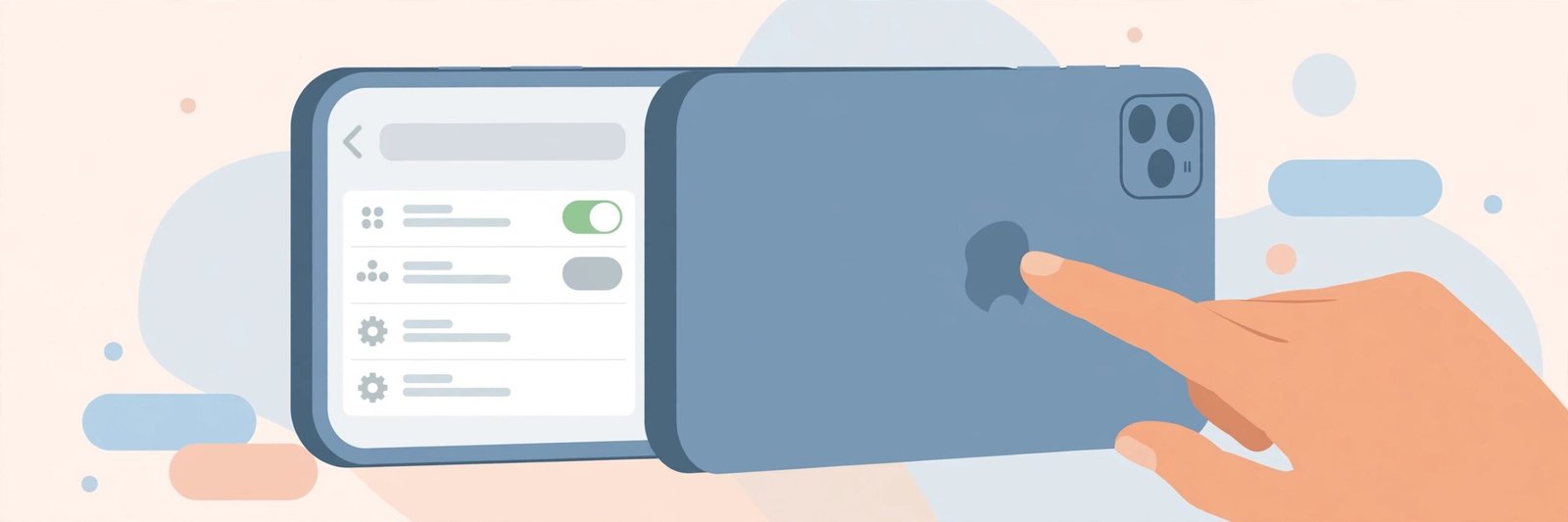
1. Back Tap — double-tap the back of your phone
You can trigger actions by tapping the back of the iPhone two or three times.
- Go to Settings > Accessibility > Touch > Back Tap.
- Choose Double Tap or Triple Tap.
- Assign an action like Screenshot, Torch, or opening an app. Now tap the back of the phone — it even works through many cases.
2. The keyboard has a hidden trackpad
Editing a long message is fiddly — unless you know this one. Touch and hold the space bar on the keyboard. The keys go blank and the whole keyboard becomes a trackpad, so you can slide the cursor precisely to any letter.
3. Drag and drop between apps
Touch and hold a photo, text, or file until it lifts, keep holding with one finger, use another finger to swipe into a different app, then release to drop it. Works between Photos, Messages, Notes, Mail, and more.
4. Shake to undo
Made a typing mistake or deleted something by accident? Many Apple apps support Shake to Undo. Give the phone a gentle shake and tap Undo. You can turn this on or off in Settings > Accessibility > Touch.
Camera and Photos Tricks
5. Live Text — copy words from any photo
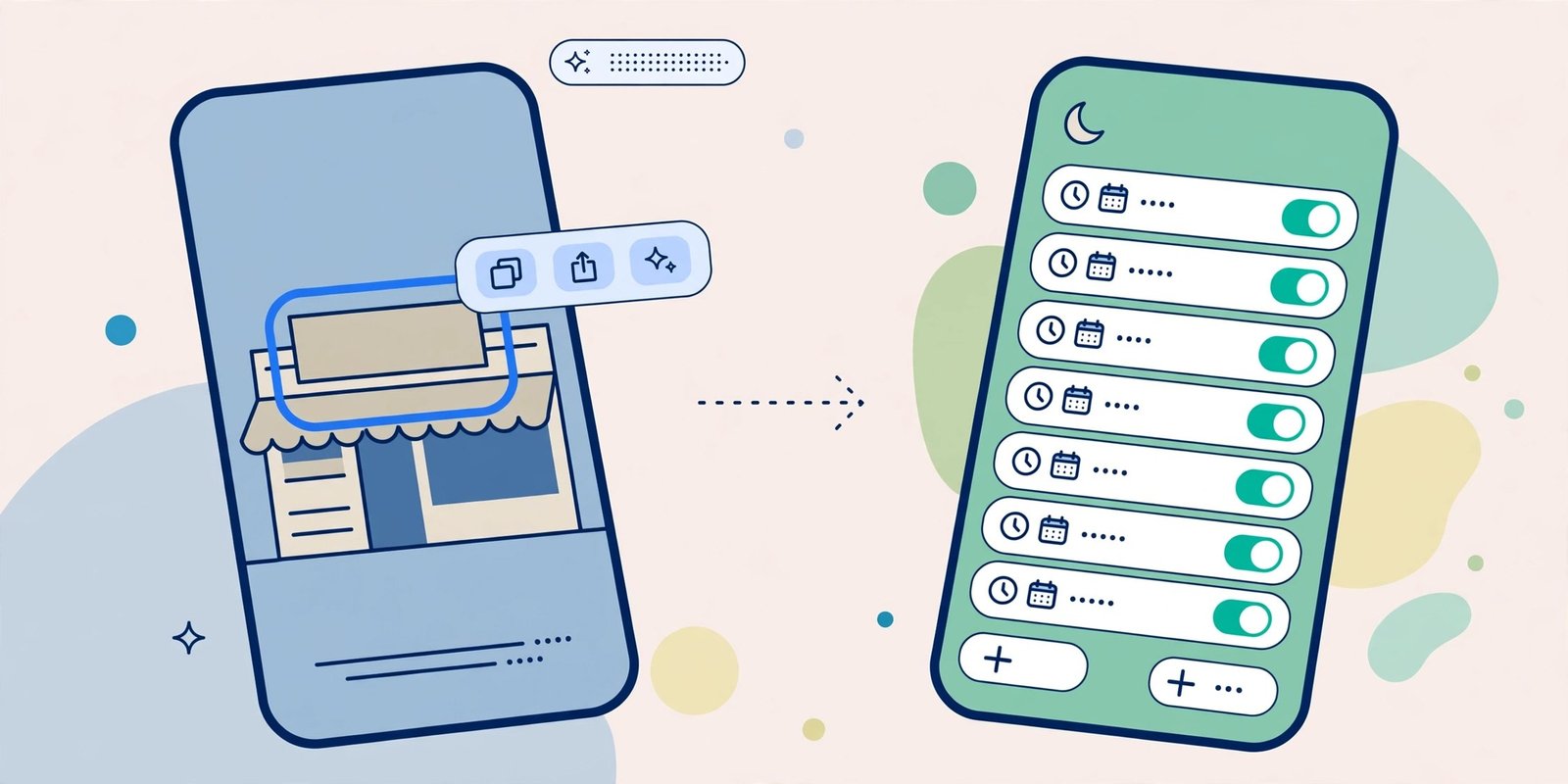
Open a photo with words in it, and a Live Text icon appears when text is detected. Tap it to copy, translate, or look up the text. You can do the same live through the Camera app, pointed at a sign, menu, or document. (Needs an iPhone XS, XR, or newer.)
6. Identify plants, animals, and landmarks
Open a photo in Photos and swipe up, or tap the information (i) button. When Visual Look Up recognises the subject — a flower, a dog breed, a famous building — it shows extra information.
7. Hide private photos properly
In Photos, select a picture, tap the share or options menu, and choose Hide. Hidden photos move to a Hidden album under Utilities in the Albums tab, and on recent iOS versions that album is locked behind Face ID or your passcode.
8. Scan documents and QR codes without extra apps
The Camera app scans QR codes automatically — just point and tap the notification. For documents, open Notes, create a note, tap the camera/attachment icon, and choose Scan Documents. The iPhone straightens the page and saves a clean PDF-style copy.
Privacy and Safety Features
9. Face ID with an extra look — and an extra person
Face ID can learn a second appearance and can also work with a mask on newer models. Go to Settings > Face ID & Passcode, then set up an Alternate Appearance. You can also add a trusted family member’s face there if you share the phone — but only do this for someone you fully trust.
10. Check which apps are tracking you
In Settings > Privacy & Security, you can review Location Services, Microphone, Camera, and Tracking permissions app by app. Turn off “Allow Apps to Request to Track” to block tracking requests across all apps at once.
11. Safety Check for a quick privacy reset
Safety Check, in Settings > Privacy & Security, was designed for people who need to quickly stop sharing their location, photos, and accounts with others. It walks you through what you share and lets you reset it in one place.
12. Hide your email with iCloud
With iCloud+, Hide My Email creates random addresses that forward to your real inbox when you sign up for websites. Find it in Settings > [your name] > iCloud > Hide My Email.
Focus, Sound, and Everyday Shortcuts
13. Focus modes that change your phone automatically
Focus is much more than Do Not Disturb. In Settings > Focus, create modes like Work, Sleep, or Study that silence selected apps and people and can even change your Home Screen pages. Set them to turn on by time or location.
14. Recognise sounds around you
Sound Recognition makes the iPhone listen for sounds like a doorbell, a baby crying, a smoke alarm, or running water, and notify you. Turn it on in Settings > Accessibility > Sound Recognition. Use it as a helper, not a replacement for real alarms.
15. Turn the torch into a dimmer light
Open Control Centre and long-press the Torch icon. A slider appears so you can choose a soft glow instead of full brightness — perfect for not waking everyone at night.
16. Set a sleep timer for music and videos
If you fall asleep to music or podcasts, open the Clock app > Timer, set a duration, and under “When Timer Ends” choose Stop Playing. Playback stops automatically when the timer finishes.
17. Measure things with your phone
The built-in Measure app uses the camera to estimate distances and sizes, and includes a level tool. Not exact enough for professional work, but handy for furniture and quick checks. (Availability varies by model.)
18. Customise what the Action button or side shortcuts do
On models with an Action button, Settings lets you assign it to the torch, a Focus mode, the magnifier, a shortcut, and more. On other models, check Settings > Accessibility for touch shortcuts that give you similar quick control.
Frequently Asked Questions
Do these features work on older iPhones?
Most do. Back Tap needs an iPhone 8 or later, Live Text needs an iPhone XS, XR, or newer, and the Action button only exists on newer Pro models. If a menu is missing, updating iOS in Settings > General > Software Update often helps.
Why can’t I find a setting mentioned here?
Apple sometimes moves settings between iOS versions. Use the search bar at the top of the Settings app and type the feature name, like “Back Tap” or “Focus.”
Does Back Tap drain the battery?
No noticeable amount. It uses sensors the phone already runs, and it can be switched off any time in Accessibility settings.
Is it safe to let apps use Face ID?
Face ID data stays on your iPhone in a secure part of the chip and is not sent to Apple’s servers. You control which apps may use it in Settings > Face ID & Passcode.
What should I try first?
Back Tap for screenshots, the keyboard trackpad, and one Focus mode — each takes under a minute to set up.
Conclusion
The best iPhone features are often the quiet ones: a tap on the back, a hidden trackpad, text copied straight out of a photo. Try a few today and your phone will feel newer — without spending anything. For more practical phone guides, free tools, and honest tech tips, keep exploring YumPlatter.