

The monitor is the one piece of home office gear you stare at all day, and it shapes how your whole working day feels. A good screen means less eye strain, more room for windows side by side, and colours you can trust. A bad one means squinting, scrolling, and a sore neck by three in the afternoon. The best monitors for home office in 2026 cover every desk and every budget, and most of them are far better than the screen built into your laptop.
This list includes a budget 27-inch display that does the basics well, a 4K screen for sharp text and photo work, an ultrawide that replaces two monitors, and a gaming-capable screen for people who work by day and play by night. Every pick was chosen for things that matter at a desk: sharp text, comfortable brightness, good viewing angles, and a stand that adjusts properly.
Before you buy, measure your desk. A 32-inch monitor sounds wonderful until it arrives and dominates a small desk, and an ultrawide needs real depth to feel comfortable. The right size is the one that fits your space and your work.
1. Dell UltraSharp 27 4K (U2723QE)
The Dell UltraSharp U2723QE has been the default recommendation for home offices for years, and the current model keeps that crown. The 27-inch 4K IPS panel shows text so sharply that it looks printed, colours are accurate out of the box, and the anti-glare coating handles bright rooms well. For writing, spreadsheets, and design work, it is hard to fault.
The real star is the connectivity: a USB-C hub that charges your laptop with up to 90W while carrying video and data over a single cable, plus extra USB ports for a keyboard, a webcam, and a drive. You plug one cable in each morning and your whole desk wakes up. The stand adjusts for height, tilt, swivel, and pivot, so you can set it exactly right. It only runs at 60Hz, which is fine for work but not ideal for fast gaming, and the contrast is ordinary for an IPS panel. For pure office work, though, this is the monitor to beat.
2. LG UltraWide 34WP65C-B
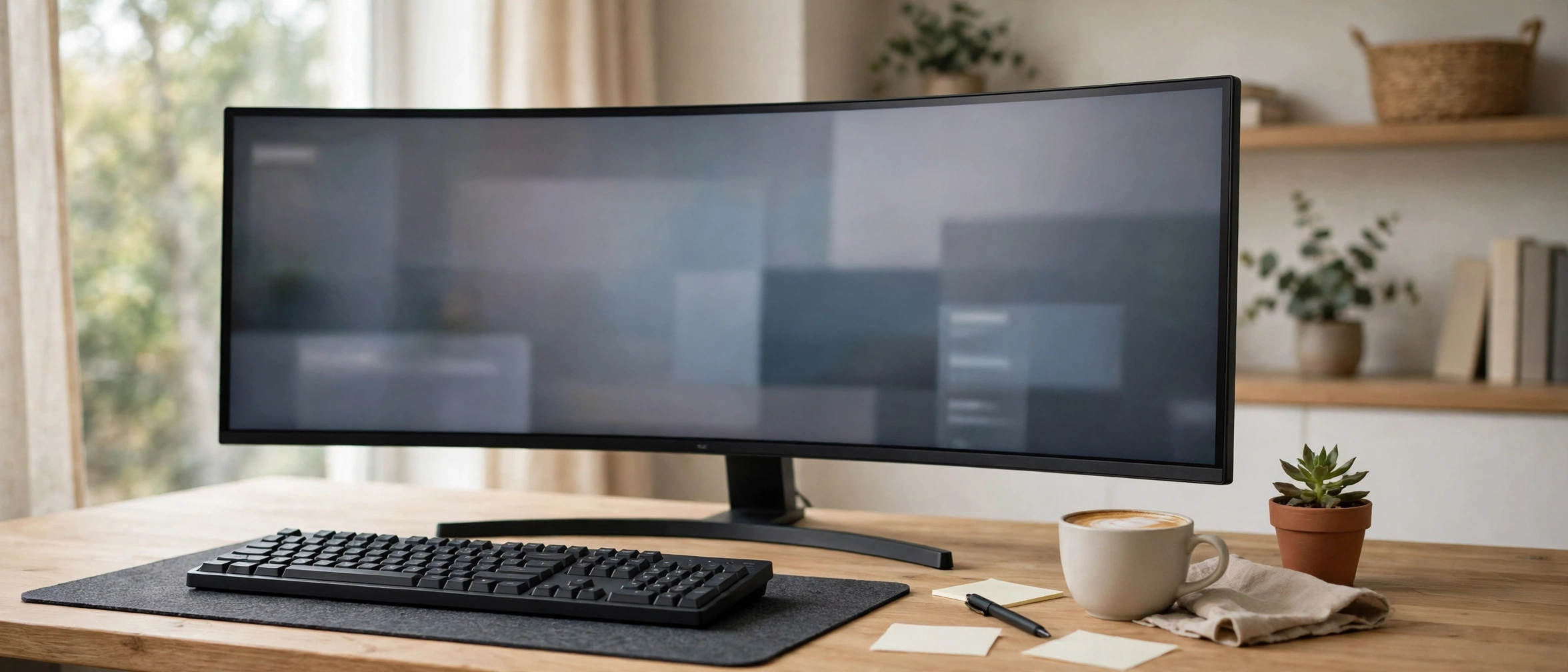
The LG 34WP65C-B is a 34-inch ultrawide that replaces two monitors with one seamless screen. You can keep email open on the left, a document in the middle, and a chat window on the right, without a bezel cutting through the middle of your work. For anyone who juggles three windows at once, that single wide canvas changes how you work.
The curved VA panel is immersive and easy on the eyes, with good contrast and decent colours for office work and films. It runs at 160Hz, which makes scrolling feel smooth and gives it a second life as a gaming screen after hours. The resolution is 3440 by 1440, which is sharp enough for text without needing display scaling. Downsides are modest: the VA panel’s viewing angles are narrower than IPS, and the curve takes a day to get used to. If your work is window-heavy, an ultrawide is the single best upgrade you can make.
3. Samsung Smart Monitor M8
The Samsung Smart Monitor M8 is a monitor with a trick: it works without a computer. Built-in apps let you stream films, browse the web, and join video calls from the screen itself, and the included webcam slides on magnetically. For a home office that doubles as a spare room, it means the monitor earns its keep in the evening too.
As a work screen it is a solid 32-inch 4K display with good colours and a slim, attractive design that looks more like a television than office equipment. The USB-C port charges a laptop, and the remote control makes it easy to switch between work and streaming. The 60Hz refresh rate and the smart TV interface will not suit everyone — the menus can feel slow — and serious photo editors should look at the Dell instead. But as a stylish all-in-one screen for a small home office, it is a clever buy.
4. BenQ PD2706U
The BenQ PD2706U is the monitor for people whose work lives or dies on colour: photographers, designers, and video editors. It covers 95 percent of the DCI-P3 colour space, comes factory-calibrated with a report in the box, and includes BenQ’s Hotkey Puck for switching colour modes without digging through menus. What you see on screen is what your audience will see.
The 27-inch 4K IPS panel is sharp and even, with good brightness and a matte coating that kills reflections. The USB-C hub charges a laptop at 90W and carries data, and the stand adjusts in every direction. It also has a built-in KVM switch, so you can share the screen, keyboard, and mouse between two computers with one button — handy if you run a work laptop and a personal machine. It costs more than the Dell, and the 60Hz refresh rate rules out serious gaming, but for colour-critical work it is worth every penny.
5. Gigabyte M27Q Pro
The Gigabyte M27Q Pro is the work-and-play pick: a 27-inch QHD monitor that runs at 165Hz, so it is smooth for gaming and silky for scrolling through documents. The IPS panel is bright and colourful, with good viewing angles, and the resolution is the sweet spot for a 27-inch screen — sharp text without the scaling headaches of 4K.
It includes a KVM switch for two computers, a USB-C port, and a height-adjustable stand. The built-in speakers are basic, as they are on most monitors, so plan for headphones or external speakers. Black levels are ordinary for IPS, which shows in dark films and games, but for a mixed-use desk — spreadsheets by day, games by night — the M27Q Pro is one of the best-value screens you can buy. It is often on sale, which makes it harder to resist.
6. ASUS ProArt Display PA279CRV
The ASUS ProArt PA279CRV is a 27-inch 4K monitor built for creators on a budget. It covers 99 percent of DCI-P3 and 99 percent of Adobe RGB, which is rare at this price, and it arrives calibrated. For photo editing, illustration, and video work, that colour accuracy is the whole point — and it costs far less than most pro displays.
The design is clean and slim, the stand adjusts well, and the USB-C hub delivers 96W of charging to a laptop. The 60Hz refresh rate is fine for creative work, and the matte screen handles bright rooms. The menu system is a little fiddly, and the speakers are weak, but those are minor complaints. If you edit photos or video and cannot stretch to the BenQ, the ProArt gives you nearly the same colour for less money.
7. Dell S2722QC
The Dell S2722QC is the budget 4K pick, and it proves you do not need to spend a fortune for a sharp screen. The 27-inch 4K IPS panel shows crisp text and good colours, the design is clean and slim, and the USB-C port charges a laptop at 65W — enough for most ultrabooks. For writing, browsing, and office work, it feels far more expensive than it is.
The trade-offs are where you would expect them: the stand only tilts, with no height adjustment, so you may need a monitor arm or a stack of books to get the height right. There are no built-in speakers worth using, and the 60Hz refresh rate is standard. But the panel itself is the same quality class as monitors costing far more. Pair it with a cheap monitor arm and a pair of speakers, and you have a home office setup that punches well above its price.
8. MSI MAG 342CQR
The MSI MAG 342CQR is a 34-inch ultrawide for people who want a big, curved screen without a big price. The VA panel runs at 144Hz with a 1500R curve that wraps around your field of view, making it immersive for both work and games. The contrast is strong, so films and dark games look rich, and the 3440 by 1440 resolution gives you room for three windows side by side.
It has DisplayPort and HDMI, a height-adjustable stand, and a clean, gamer-friendly design without excessive lighting. Colour accuracy is decent for office work but not pro-level, so photo editors should look elsewhere. The VA panel can smear slightly in fast-moving games, which is normal for the technology at this price. If you want the ultrawide experience on a budget, and you like to game after work, the MAG 342CQR is a lot of screen for the money.
Quick Comparison
| Monitor | Size / Resolution | Best for | Refresh |
|---|---|---|---|
| Dell U2723QE | 27″ 4K | Office work, USB-C hub | 60Hz |
| LG 34WP65C-B | 34″ ultrawide QHD | Multi-window work | 160Hz |
| Samsung M8 | 32″ 4K | Work and streaming | 60Hz |
| BenQ PD2706U | 27″ 4K | Colour-critical work | 60Hz |
| Gigabyte M27Q Pro | 27″ QHD | Work and gaming | 165Hz |
| ASUS PA279CRV | 27″ 4K | Photo and video | 60Hz |
| Dell S2722QC | 27″ 4K | Budget 4K | 60Hz |
| MSI MAG 342CQR | 34″ ultrawide QHD | Budget ultrawide, gaming | 144Hz |
How to Choose a Monitor for Your Home Office
Start with size and resolution together, because they decide how sharp text looks. A 27-inch screen at 1440p is the sweet spot for most desks — sharp enough for all-day reading without scaling tricks. Step up to 4K at 27 inches and text looks printed, which writers and coders love. Go bigger than 27 inches and you need 4K to keep text crisp, or the pixels start to show. Ultrawide screens are wonderful for multi-window work, but they need a deep desk and a bit of patience while you learn to manage windows across that much space.
Then look at the stand and the ports. A height-adjustable stand is not a luxury — it is how you get the top of the screen at eye level and stop your neck aching. A USB-C port that charges your laptop turns one cable into your whole desk setup, and it is worth paying a little extra for. Check the panel type too: IPS gives the best colours and viewing angles for work, VA gives deeper blacks for films and games, and most office workers will be happiest with IPS. If your desk is small, a monitor arm that clamps to the back of the desk frees up the space under the screen and lets you adjust the height and angle in seconds — it is a modest purchase that makes even a budget monitor feel like a premium setup. Keep your machine running smoothly alongside your new screen with the tips in How to Speed Up Your Laptop (12 Easy Fixes That Really Work) and Windows 11 Hidden Features (15 Tricks Most People Miss).
Setting Up Your Home Office Monitor
A great monitor still needs a good setup to feel right. Place it about an arm’s length away, with the top of the screen at or just below eye level — a height-adjustable stand or a monitor arm makes this easy, and it is the single change that helps neck pain most. If your monitor only tilts, raise it with a proper stand rather than a stack of books that wobbles every time you type.
Lighting matters just as much as position. Put the monitor at right angles to a window, not facing it or with your back to it, so you avoid glare on the screen and a bright window behind you on video calls. A cheap desk lamp aimed at the wall behind the monitor softens the contrast between the bright screen and a dark room in the evening, which reduces eye strain more than any blue-light filter.
Then sort the cables once and properly. A USB-C monitor with a built-in hub means one cable to your laptop carries video, charging, and your keyboard and mouse — run it through a small cable tray and your desk stays tidy. Set the display scaling so text is comfortable to read rather than squinting at tiny fonts, and give yourself a week to get used to the new size before you judge it. Most people who switch to a bigger monitor wonder how they ever worked on a laptop screen alone, and the adjustment period is shorter than you think — by day three, the old screen feels cramped, and by the end of the week you will not want to go back.
FAQ
What size monitor is best for a home office?
27 inches is the sweet spot for most desks — big enough for two windows side by side without dominating the room. Go to 32 inches or an ultrawide if you have a deep desk and juggle many windows. Measure your desk before you buy, and sit at your normal distance to check the size feels right.
Is 4K worth it for office work?
Yes, at 27 inches and above. Text looks noticeably sharper, which reduces eye strain over long days, and you get more usable screen space. At smaller sizes the difference is harder to see. If your budget is tight, a good 1440p screen is a fine alternative.
Do I need a USB-C monitor?
If you use a laptop, it helps a lot. A USB-C monitor carries video, data, and charging over one cable, so your desk stays tidy and you plug in once each morning. Check that the monitor’s USB-C power is enough for your laptop — most ultrabooks need 65W, while bigger laptops may need 90W or more.
Is an ultrawide monitor good for work?
Yes, for window-heavy work like research, trading, or video editing. One ultrawide replaces two monitors with no bezel in the middle. It is less useful if you mostly work in one full-screen app, and some older software does not handle the wide aspect ratio well.
How high should my monitor be?
The top of the screen should sit at or just below eye level, about an arm’s length away. A height-adjustable stand or a monitor arm makes this easy. If your monitor only tilts, raise it with a stand or a stack of books until the height is right.
Conclusion
The best monitors for home office in 2026 depend on your work, but the shortlist is clear. The Dell UltraSharp U2723QE is the best all-round office screen, the LG ultrawide is the pick for multi-window workers, the BenQ PD2706U is the one for colour-critical work, and the Dell S2722QC gives you 4K on a budget. Gamers who work by day should look at the Gigabyte M27Q Pro. Measure your desk, check the stand adjusts properly, and buy the sharpest screen your budget allows — your eyes will thank you every working day. A monitor is the one upgrade you look at for eight hours a day, so it is worth spending a little more here than on almost any other part of your desk setup. For more ways to improve your setup, read Best Productivity Apps (10 Apps to Get More Done in 2026). Before you order, measure the depth of your desk as well as the width — a big screen on a shallow desk sits too close and strains your eyes. A monitor arm is worth considering too, because it frees desk space and lets you set the height exactly where your neck wants it. And give your eyes a break every hour, whatever screen you buy, because no monitor fixes a full day without looking away.
Sources: Computer monitor — Wikipedia, Dell UltraSharp U2723QE — official page