
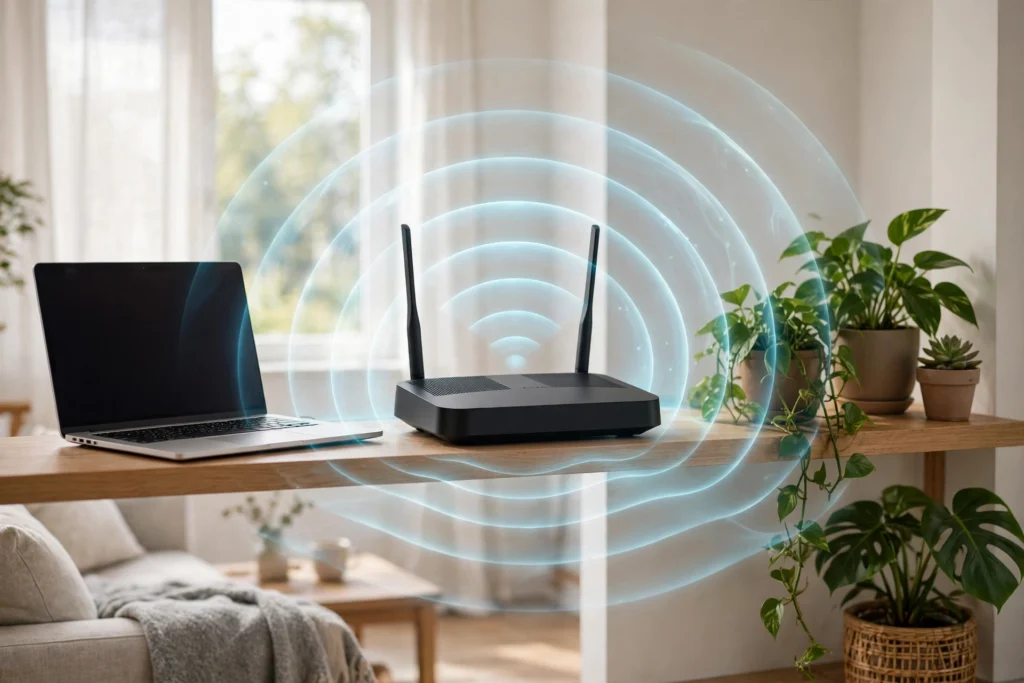

Slow Wi-Fi has a way of ruining the simplest things. A video call freezes mid-sentence, a film buffers at the best part, and a file that should take seconds takes ten minutes. Before you blame your internet provider or pay for a faster plan, it is worth knowing that most home Wi-Fi problems live inside your own house, and most of them are free to fix.
Your Wi-Fi speed depends on three things: the speed coming into your home, the router spreading it around, and everything in between, walls, distance, interference and too many devices. A weak link anywhere in that chain drags the whole thing down, and the fixes below work through the chain one link at a time, cheapest first.
Work through these twelve fixes in order. Test your speed before you start, using a free tool like speedtest.net, and test again after each change, so you can see which fix actually helped.
1. Move Your Router to the Centre of Your Home
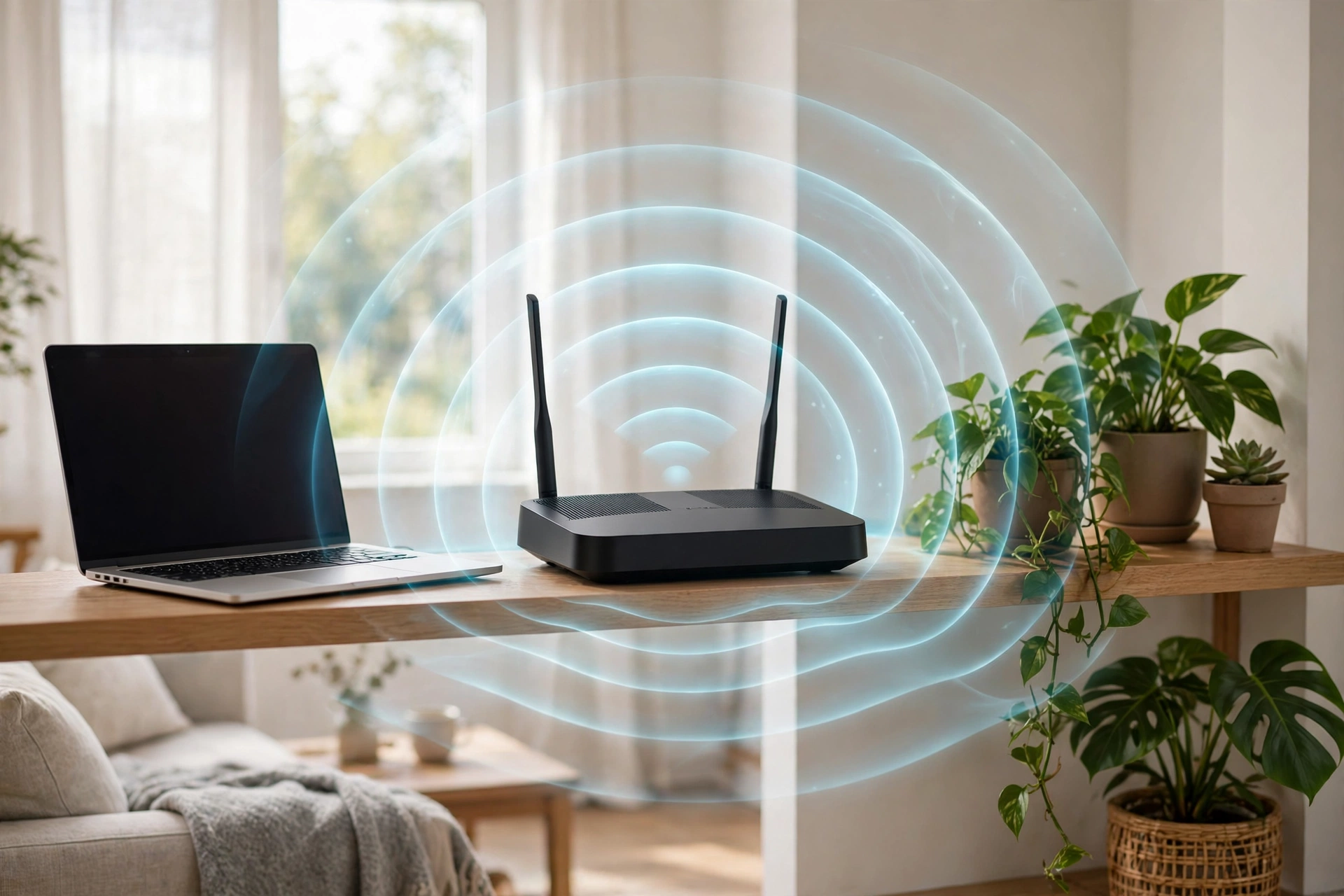
Router placement is the single biggest free fix, and it is the one most people get wrong. A router hidden in a corner, behind the television, inside a cabinet or down in the basement is fighting your whole house. Wi-Fi signals spread outwards in all directions and get weaker as they pass through walls, floors and furniture.
Put the router in a central spot, out in the open, raised up on a shelf or a table rather than on the floor. Keep it away from thick walls, metal objects, mirrors and fish tanks, all of which block or reflect the signal. A move of a few metres can be the difference between a dead zone in the bedroom and a solid connection everywhere. If you can, place it high: Wi-Fi spreads slightly downwards better than upwards, so a shelf beats the floor.
2. Restart Your Router Properly
It sounds like a joke, but restarting the router fixes a surprising number of speed problems. Routers are small computers, and like any computer they build up temporary glitches, memory leaks and stuck connections over weeks of non-stop running. A restart clears all of that in two minutes.
Unplug the router from power, wait a full thirty seconds, and plug it back in. Wait another two or three minutes for it to reconnect and settle before you test. Do this once a month, or set a weekly schedule if your router supports it. Do not just press the power button on and off quickly, because a proper unplug is what clears the memory.
3. Check Your Real Internet Speed
Before you fix anything, find out what speed you are actually paying for and what you are actually getting. Run a speed test on a device connected by cable, if you can, and then on Wi-Fi standing next to the router. If the cable test is close to your plan speed but the Wi-Fi test is far slower, the problem is your Wi-Fi, not your provider.
If even the cable test is far below your plan, the problem is upstream: the line, the modem or the provider itself. That is the point where you call your provider with numbers in hand, because “my internet is slow” gets a shrug, while “I pay for 200 Mbps and get 40 Mbps on a wired connection” gets an engineer. Keep a note of the results so you can compare later.
4. Switch to the 5 GHz Band
Most modern routers broadcast two Wi-Fi networks: 2.4 GHz and 5 GHz. The 2.4 GHz band travels further and passes through walls better, but it is slower and more crowded. The 5 GHz band is much faster, but its range is shorter. Many devices connect to 2.4 GHz by default and stay there, even when 5 GHz would be faster.
If you are in the same room as the router, or one room away, connect to the 5 GHz network. You will often see double or triple the speed. Save the 2.4 GHz band for devices far away, or for smart home gadgets, which usually only support 2.4 GHz anyway. If your router combines both bands into one network name, check its settings for a band-steering option, or split them into two names so you can choose yourself.
5. Change Your Wi-Fi Channel
Wi-Fi channels are like lanes on a motorway. In a crowded area, every neighbour’s router is using the same few lanes, and the traffic jams slow everyone down. This is worst on the 2.4 GHz band, which only has three non-overlapping channels: 1, 6 and 11. If ten routers nearby are all on channel 6, they are all fighting each other.
Use a free Wi-Fi analyser app on your phone to see which channels are busy around you, then log into your router settings and switch to the least crowded channel. On 5 GHz there are many more channels, so congestion is less of a problem, but it is still worth checking. A channel change takes five minutes and can transform speeds in flats and terraced houses.
6. Update Your Router Firmware
Router manufacturers release firmware updates that fix bugs, close security holes and sometimes improve speed. Most people never install them, because the router never asks. Log into your router’s admin page, usually at an address like 192.168.1.1, and check for a firmware update section. Some newer routers update automatically, but many do not.
While you are in the settings, check that your router is using a modern Wi-Fi standard. If it is an old 802.11n router from a decade ago, no setting will make it fast, and an upgrade is the honest answer. A modern Wi-Fi 6 router costs far less than a year of a faster internet plan, and it makes the speed you already pay for actually reach your devices.
7. Kick Off Unknown Devices
Every device on your network shares the same internet connection, and some of them use far more than you think. A neighbour on your Wi-Fi, an old phone backing up photos, or a smart TV downloading updates can all drag your speed down. Log into your router and look at the list of connected devices. If you see anything you do not recognise, change your Wi-Fi password and reconnect your own devices.
Use a strong password, WPA2 or WPA3 security, and a network name that does not give away your address. Also check which of your own devices are heavy users: cloud backups, game downloads and 4K streams are the usual suspects. Pausing a backup during a video call is often enough to fix the stutter.
8. Reduce Interference From Other Electronics
Wi-Fi shares the 2.4 GHz band with a surprising number of household devices: microwave ovens, baby monitors, cordless phones, Bluetooth speakers and even some LED lights. A microwave running can cut Wi-Fi speed in a nearby room noticeably, because it floods the same frequencies with noise.
Keep the router away from the microwave and other electronics, and use the 5 GHz band where you can, since it does not share space with those devices. Bluetooth is less of a problem than it used to be, but a dozen Bluetooth devices in one room can still add noise. If your speed drops every evening at dinner time, the microwave is a prime suspect.
9. Use a Wired Connection for the Important Stuff
Wi-Fi is convenient, but a cable is faster and more stable, every single time. If you work from home, game online, or stream in 4K, plug your computer, console or TV directly into the router with an Ethernet cable. You will get the full speed of your plan, with no interference and almost no delay.
If running a cable across the house is not practical, powerline adapters are a good middle ground. They send the internet signal through your home’s electrical wiring, so you plug one adapter near the router and another near your device. They are not as fast as a direct cable, but they beat weak Wi-Fi in a far room. For more on keeping your whole home network healthy, see our guide on How to Speed Up Your Laptop (12 Easy Fixes That Really Work).
10. Add a Mesh System or Extender for Dead Zones
If part of your home simply gets no signal, no setting will fix it: the distance and the walls are too much. That is the point where extra hardware helps. A Wi-Fi extender repeats the signal into the dead zone, and it is cheap, but it usually halves the speed in that area. A mesh system is the better option: two or three small units placed around your home that talk to each other and hand your device between them seamlessly.
Mesh systems cost more, but they are the fix that actually works for larger homes, thick walls and multiple floors. Place the units halfway between the router and the dead zone, not inside the dead zone itself, or they will have nothing good to repeat. A three-unit mesh system covers most family homes, and the setup takes about fifteen minutes through a phone app.
11. Limit Bandwidth Hogs and Set Quality of Service
Some routers let you prioritise traffic, a feature called Quality of Service, or QoS. It tells the router that video calls and gaming matter more than a background cloud backup, so when the network is busy, the important traffic goes first. Turning QoS on and setting your work laptop or console as a priority device can end the daily fight over bandwidth in a busy household.
Also check the streaming quality on your devices. A TV set to 4K uses about 25 Mbps, while HD uses around 5 Mbps. If three people are streaming at once, the house can run out of speed even on a good plan. Dropping a background stream to HD is invisible on a small screen and frees up real bandwidth for everyone else.
12. Upgrade Your Plan, Router, or Both
If you have done everything above and the speed still does not meet your needs, it may genuinely be time to upgrade. Check what your provider offers: the jump from a basic plan to the next tier is often cheaper than people expect, and providers frequently offer a discount if you ask. Count how many people and devices use your connection, and match the plan to that number, not to the advertised headline speed.
An old router is the other common bottleneck. If yours is more than five years old, a Wi-Fi 6 router will make a real difference, especially in a house full of devices. And if your home is large or has thick walls, a mesh system is a better spend than a faster plan, because a fast plan means nothing if the signal cannot reach the bedroom. Before you spend, read our Best Budget Smartphones (Great Phones That Don’t Cost Much in 2026) if your phone itself is old, since an ageing phone can also cap your Wi-Fi speed.
Wi-Fi Fixes at a Glance
Not every fix matters equally. The table below ranks the fixes by impact and cost, so you can start with the ones that help most for nothing.
| Fix | Cost | Impact |
|---|---|---|
| Move the router centrally | Free | High |
| Restart the router | Free | Medium |
| Switch to 5 GHz | Free | High |
| Change the Wi-Fi channel | Free | High in flats |
| Update firmware | Free | Medium |
| Use a wired connection | Cost of a cable | High |
| Mesh system | Moderate | High for large homes |
| Faster plan or new router | Monthly or one-off | High if hardware is old |

Tips for a Faster Home Network
Test your speed at different times of day. Evening is the busiest time for most providers, so a speed test at 8 pm tells you more about real life than one at 3 am. If your speed halves every evening, the problem may be congestion on your provider’s network, and that is worth raising with them.
Keep your router’s software and your devices updated. Old phones and laptops with outdated Wi-Fi drivers can drag a network down, because the router slows down to talk to them. And if you run a smart home with dozens of gadgets, give them their own network or band where possible, so they do not compete with your laptop and TV. Our Smart Home Technology for Beginners (What It Is and Where to Start) explains how to organise a connected home without the chaos.
Common Mistakes That Slow Wi-Fi Down
The most common mistake is hiding the router. A router in a cupboard, behind the TV or inside a metal cabinet loses a large share of its signal before it even leaves the room. Routers are not decorative, and they work best out in the open, even if that means a visible box on a shelf.
Another mistake is buying a faster plan before fixing the Wi-Fi. If your router is old, badly placed or on a crowded channel, a faster plan just delivers more speed to the router, and the same weak Wi-Fi still delivers a fraction of it to your devices. Fix the home network first, then upgrade the plan if you still need more.
Finally, do not ignore security. An open or weakly protected network lets neighbours use your bandwidth and puts your devices at risk. A strong password and WPA2 or WPA3 encryption cost nothing and protect both your speed and your privacy.

FAQ
Why is my Wi-Fi slow in one room only?
That room is probably too far from the router, or there are thick walls, metal objects or mirrors in between. Move the router closer to the centre of your home, switch to the 5 GHz band if you are nearby, or add a mesh unit or extender to cover the dead zone.
Does restarting the router really help?
Yes. Routers build up glitches and stuck connections over weeks of running non-stop. Unplugging it for thirty seconds and plugging it back in clears the temporary memory and forces a fresh connection to your provider, which often restores full speed.
Is 5 GHz always better than 2.4 GHz?
Not always. 5 GHz is faster but has shorter range and struggles with walls. Use 5 GHz when you are near the router, and 2.4 GHz when you are far away or in another room. The best setup is to have both available and let each device use the one that suits its location.
How many devices can my Wi-Fi handle?
A modern Wi-Fi 6 router can handle dozens of devices comfortably, while an older router may struggle past ten or fifteen active ones. The real limit is bandwidth, not device count: a few devices streaming 4K video use more of your connection than twenty smart bulbs and sensors.
Should I buy a mesh system or a range extender?
A mesh system is better for most homes. It creates one seamless network, hands your device between units smoothly, and keeps more of your speed. An extender is cheaper and fine for a single dead zone, but it creates a separate network and usually halves the speed in that area.
Conclusion
Most slow home Wi-Fi is not your provider’s fault, and it is not a reason to pay for a faster plan straight away. Move the router to the centre of your home, restart it properly, switch to the 5 GHz band, pick a quiet channel and update the firmware. Those five free fixes solve the problem for most households. If dead zones remain, a mesh system or a wired connection finishes the job, and only then is a plan upgrade worth the money. Test your speed before and after, keep a note of what helped, and your video calls, films and games will run the way they were supposed to.