
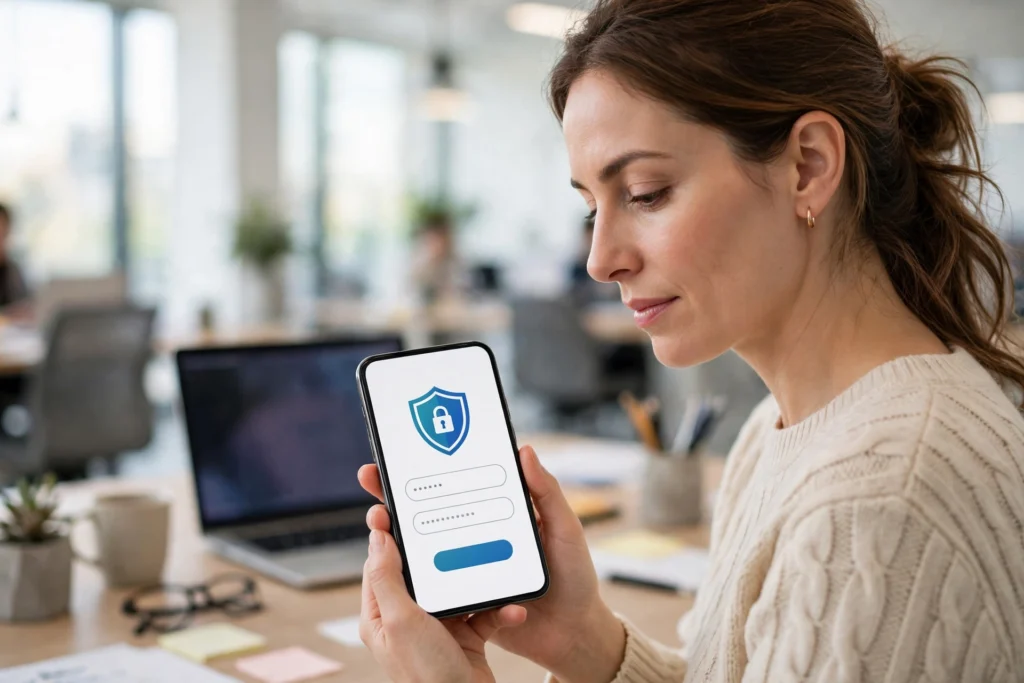

Imagine your front door has one lock, and someone steals your key. They can walk straight in. Now imagine the door has two locks, and the second key is something only you carry — a code that changes every 30 seconds on your phone. The stolen key is suddenly useless on its own. That is two-factor authentication in one picture.
Two-factor authentication, usually shortened to 2FA, is a second check that happens after you enter your password. You type your password, then you prove it’s really you a second way: a code from an app, a text message, your fingerprint, or a small physical key. Even if a hacker steals your password, they still can’t get in without that second factor.
Most major services offer 2FA now — Google, Apple, Microsoft, your bank, your email, and your social media accounts. Yet a large share of people never turn it on, usually because it sounds technical or annoying. It isn’t. Setup takes about two minutes per account, and after that it adds only a few seconds to logging in. This guide explains what 2FA is, how it works, the different types, and exactly where to start.
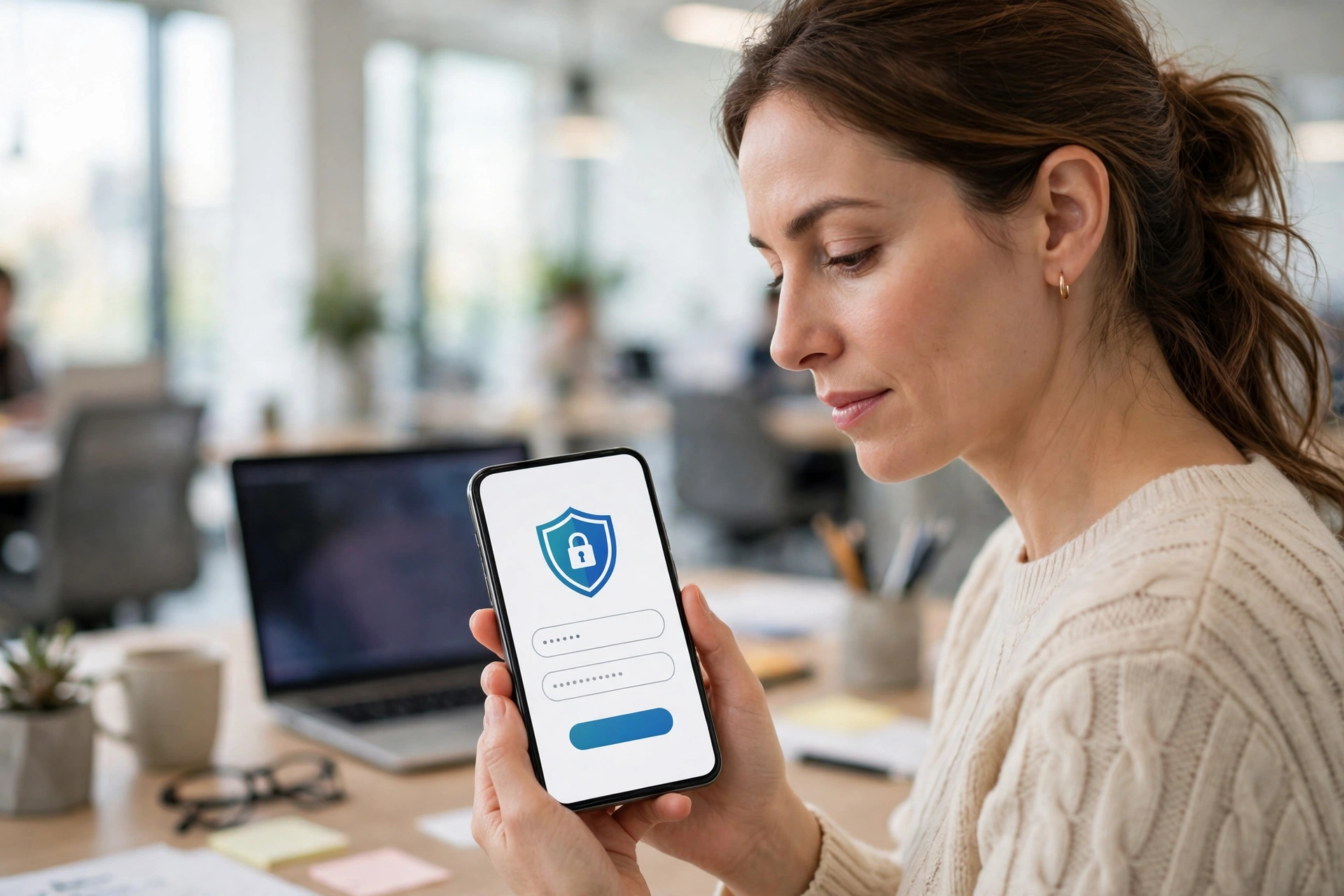
What Is Two-Factor Authentication?
Two-factor authentication means proving your identity in two different ways before you’re allowed in. The first factor is something you know: your password. The second factor is something you have, like your phone, or something you are, like your fingerprint. Both have to be right. One alone is never enough.
Security experts sort login checks into three groups. “Something you know” covers passwords and PINs. “Something you have” covers your phone, a security key, or a code generator. “Something you are” covers fingerprints, face scans, and voice recognition. Two-factor authentication picks two different groups — usually a password plus one of the others — so a single stolen item can’t open the door.
You’ve probably used 2FA already without knowing its name. When your bank texts you a code before a transfer, that’s 2FA. When your email asks you to tap “Yes, it’s me” on your phone, that’s 2FA too. The idea is old — banks have used two-step checks for decades — but it only became standard online in the last ten years, as password theft got easier and more common.
How Does 2FA Actually Work?
Here’s what happens behind the scenes. When you turn on 2FA for an account, the service and your phone agree on a shared secret — a long random code stored in both places. Your authenticator app uses that secret plus the current time to generate a six-digit code that changes every 30 seconds. When you log in, the service generates the same code on its side and checks whether the two match. If they do, you’re in.
Because the code depends on the time, a stolen code is useless within half a minute. An attacker would need your password and your phone at the same moment, which is a much harder job than stealing a password from a data breach. That time limit is what makes 2FA so strong against the most common attacks.
Text-message codes work differently: the service sends a code to your phone number each time you log in. Push notifications work differently again: the service sends a prompt to your phone, and you tap Approve or Deny. The details vary, but the idea is always the same — a second, separate check that only the real owner can pass.
1. Text Message Codes (SMS)
SMS codes are the most common form of 2FA because they work on any phone, even without a smartphone. You log in, a six-digit code arrives by text, you type it in. Nothing to install, nothing to learn. For many people, this is their first experience of two-factor authentication.
The weakness is that text messages can be intercepted. In a SIM-swap attack, a criminal convinces your mobile carrier to move your number to their SIM card, and your codes start arriving on their phone. It’s a real attack, and it’s the reason security experts rank SMS as the weakest form of 2FA. It’s still far better than no 2FA at all — most attackers never attempt a SIM swap — but if your service offers an authenticator app, take that instead.
Use SMS codes for accounts where nothing better is offered, and keep your mobile carrier account locked down with its own PIN. If your carrier offers a port-out block or extra verification for SIM changes, turn those on too.
2. Authenticator Apps
An authenticator app like Google Authenticator, Microsoft Authenticator, or Authy lives on your phone and generates a fresh six-digit code every 30 seconds for each of your accounts. You open the app, read the code, type it in. No waiting for a text, no mobile signal needed, and no SIM to swap.
Authenticator apps are the sweet spot for most people: free, easy to set up, and much stronger than SMS. Setup takes about a minute — you scan a QR code on the website, the app starts generating codes, and you’re done. Microsoft Authenticator and some others also support push notifications, so you can approve a login with one tap instead of typing a code.
The one risk is losing your phone. That’s why every service gives you backup codes when you set up 2FA: a list of one-time codes you can use to get back in. Print them or save them somewhere safe, and never store them on the same phone as the app. We’ll come back to backup codes later in this guide.
3. Hardware Security Keys
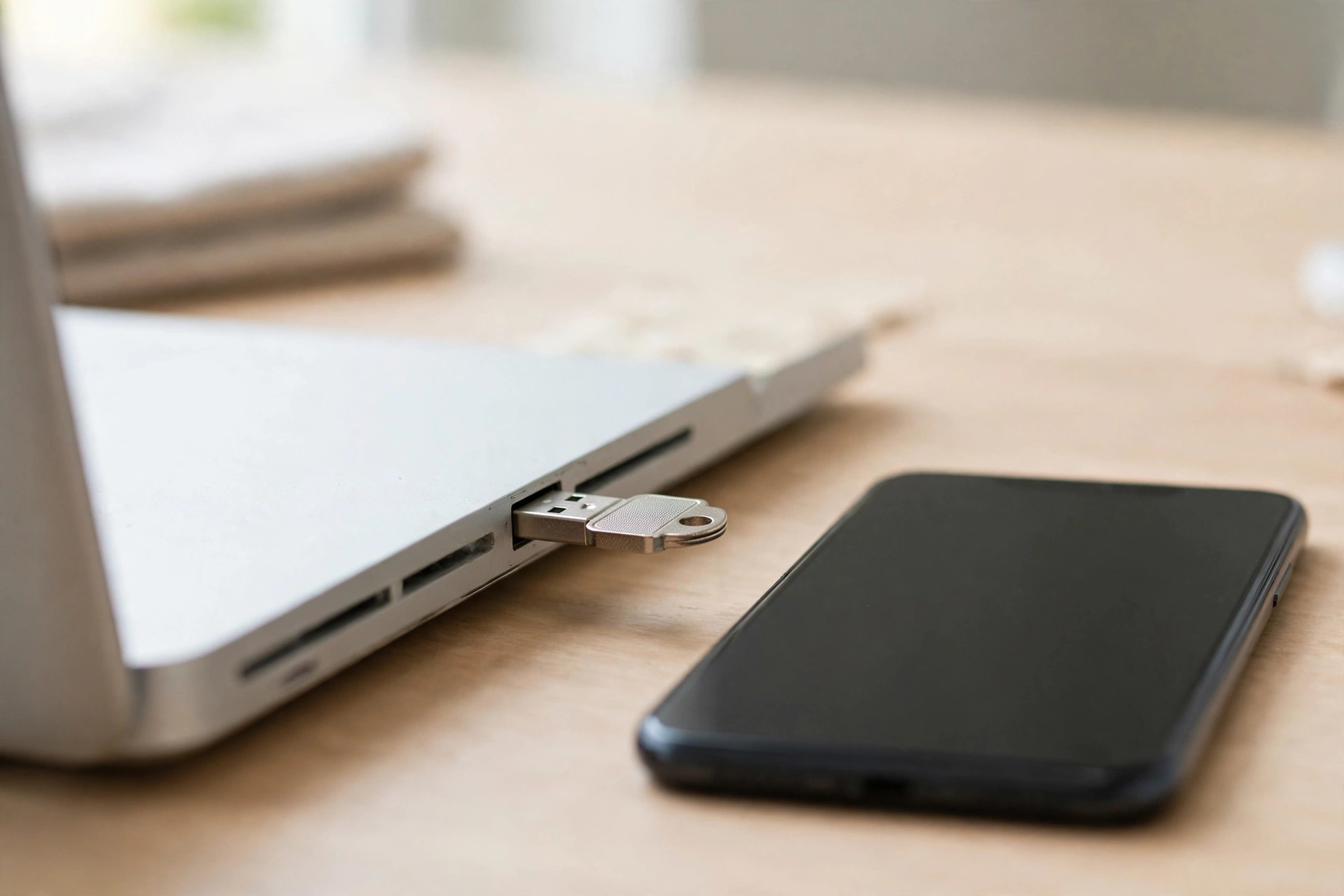
A hardware security key is a small USB or NFC device, about the size of a house key, that you plug in or tap when you log in. You enter your password, then touch the key, and you’re in. Keys from makers like YubiKey and Google Titan cost around $25–$55 each, and they are the strongest form of 2FA available to ordinary people.
The reason they’re so strong is that a security key checks the website’s real address before it approves the login. If you’re on a fake lookalike site, the key simply won’t work — it can’t be tricked by a phishing page the way a typed code can. Google’s own employees switched to security keys years ago, and the company reported that account takeovers among staff dropped to zero.
Keys are best for your most important accounts: email, banking, and your password manager. Buy two — one to use every day, one stored safely as a spare — because losing your only key can lock you out. For most accounts, an authenticator app is plenty; a key is the upgrade for the accounts that matter most.
4. Push Notifications
Push-based 2FA sends a notification to your phone that says someone is trying to log in, and asks you to approve or deny it. One tap, no typing. Apple uses this for Apple IDs, Google uses it for Google accounts, and Microsoft uses it for Microsoft accounts. It’s fast, it’s simple, and it’s hard to get wrong.
There is one attack to know about: “MFA fatigue.” An attacker with your password triggers login after login, flooding your phone with approval requests, hoping you’ll tap Approve just to make the notifications stop. The fix is simple — never approve a login you didn’t just start yourself. If a request arrives out of nowhere, tap Deny and change your password.
Some services now show a number on the login screen and ask you to pick the matching number on your phone, which stops fatigue attacks completely, since the attacker can’t see the number. If your service offers number matching, turn it on.
5. Biometrics: Fingerprint and Face
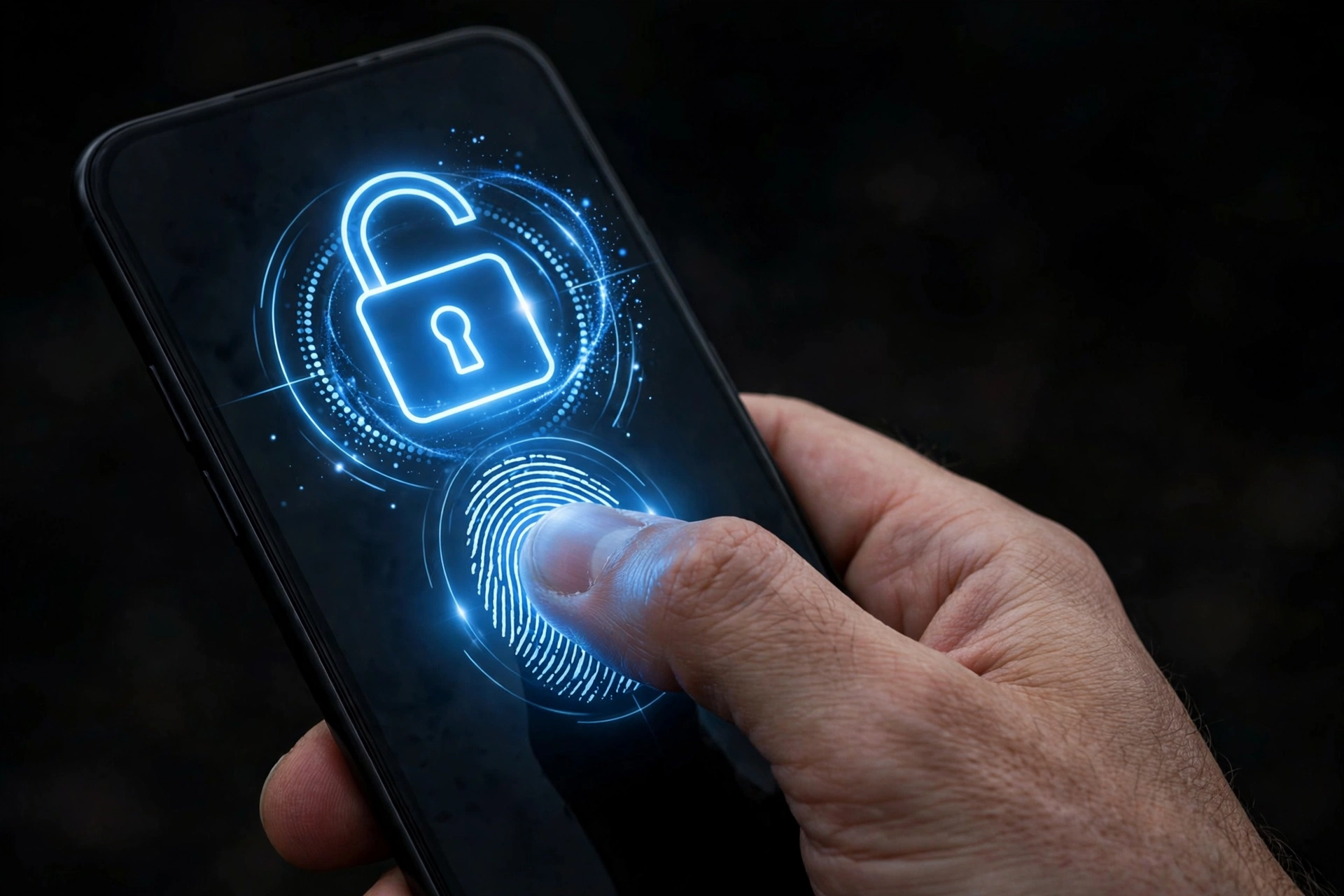
Your fingerprint and your face are the most convenient second factors of all, because you always carry them. Modern phones store this data securely on the device itself, and apps can ask your phone to confirm it’s really you before they let you in. Apple calls this Touch ID and Face ID; Android phones have their own versions.
Biometrics work well as part of 2FA, but they have a limit worth knowing: you can’t change your fingerprint the way you can change a password. That’s why biometrics are usually paired with something else — your device plus your face, or your fingerprint plus a PIN — rather than used alone. On their own, they’re a convenience feature; as a second factor, they’re strong.
One practical tip: if you share your phone with family or you’ve registered a child’s fingerprint to unlock your phone, remember that fingerprint can also approve logins and purchases. Keep biometric access limited to people you’d trust with your bank account.
2FA Methods Compared
| Method | Security | Ease of Use | Cost |
|---|---|---|---|
| SMS text codes | Basic — open to SIM swaps | Very easy | Free |
| Authenticator app | Strong | Easy | Free |
| Push notifications | Strong | Very easy | Free |
| Hardware security key | Strongest | Easy once set up | Around $25–$55 |
| Fingerprint / face | Strong as a second factor | Very easy | Free (built in) |
| No 2FA at all | Weak — password only | Easiest | Free |
Where to Turn On 2FA First
Start with your email. It’s the account that can reset every other account you own, so it’s the one attackers want most. Gmail, Outlook, Yahoo, and Apple Mail all support 2FA, and all of them walk you through setup in a couple of minutes. Use an authenticator app if you can, and save your backup codes somewhere safe.
Next, do your bank and any payment apps. Then your password manager — it holds every login you own, so it deserves the strongest protection available, ideally a hardware key. After that, work through your social media accounts, shopping accounts, and cloud storage. If a service doesn’t offer 2FA, use the strongest unique password you can and keep an eye on it. Our Best Password Managers (Keep Every Login Safe in 2026) guide explains how a manager and 2FA work together to protect your logins.
There’s a handy shortcut for checking which sites support 2FA: the community-run directory at 2fa.directory lists thousands of services and links straight to their setup pages. Spend one evening turning it on everywhere that matters, and you’ll have done more for your security than most people do in years.
Backup Codes: Don’t Skip This Step
Every time you set up 2FA, the service offers backup codes — usually 8 to 10 one-time codes you can use if you lose your phone. This is the step people skip, and it’s the step they regret skipping. A lost phone without backup codes can mean days of locked-out frustration and identity checks to get back into your accounts.
Print your backup codes and keep them somewhere secure at home, like a locked drawer or a safe. Don’t store them in a photo on your phone, in an email to yourself, or in a cloud note — those are the places an attacker can reach. A paper copy in your house is offline, private, and always there when you need it.
If you travel a lot, keep a second copy somewhere separate, and consider registering a second device for your authenticator app. Losing your phone abroad is bad enough without losing access to your email and bank at the same time.
Common 2FA Problems and Quick Fixes
Codes not working? The usual cause is a wrong clock. Authenticator apps depend on your phone’s time being accurate, so check that your phone is set to automatic date and time. If the codes are still failing, remove the account from the app and set it up again with a fresh QR code.
New phone? Move your 2FA accounts before you wipe the old one. Google Authenticator and Authy both have export and backup options; use them while the old phone still works. If you’ve already wiped it, your backup codes are your way back in — another reason to keep them safe.
Locked out entirely? Use the account recovery process on the service’s website. It usually involves proving your identity with backup codes, a recovery email, or ID documents. It’s slow on purpose — that friction is what keeps attackers out — so be patient and work through the steps. For the wider habits that keep your accounts safe day to day, see our Cybersecurity Tips for Beginners (12 Simple Ways to Stay Safe Online).
Frequently Asked Questions
Is two-factor authentication really necessary if I have a strong password?
Yes. Passwords leak in data breaches every year, and no password — however strong — can protect you once it’s in someone else’s hands. 2FA means a stolen password alone isn’t enough to get into your account. It’s the single biggest upgrade you can make after choosing a good password.
What is the best type of two-factor authentication?
For most people, an authenticator app is the best balance of security and convenience: free, strong, and easy to use. Hardware security keys are stronger still and worth it for your email, bank, and password manager. SMS codes are the weakest option, but they’re still far better than no 2FA at all.
What happens if I lose my phone with 2FA on it?
Use your backup codes — the one-time codes you received when you set up 2FA — to sign in and turn 2FA off or move it to a new device. If you didn’t save them, use the account recovery process on the service’s website, which usually takes a few days. This is why saving backup codes matters so much.
Can hackers get past two-factor authentication?
They can, but it’s much harder. Phishing pages can trick people into typing a code into a fake site, and SIM swaps can intercept text codes. Authenticator apps and security keys resist most of these attacks, and security keys resist phishing almost completely. No security is perfect, but 2FA blocks the vast majority of account-takeover attempts.
Does 2FA slow down logging in?
Barely. An authenticator code takes a few seconds to type, and a push notification takes one tap. Most services also let you mark a device as trusted for 30 days, so you only get asked for the second factor on new devices or after a long break. The small delay is worth the protection it buys.
Conclusion
Two-factor authentication is a simple idea with an outsized payoff: your password stops being the only thing between an attacker and your account. A code from your phone, a tap on a notification, or a touch on a security key turns a stolen password from a disaster into a dead end. It takes minutes to set up, seconds to use, and it protects the accounts that hold your money, your photos, and your identity.
Start tonight with your email, then your bank, then your password manager. Save your backup codes on paper, pick an authenticator app over text codes where you can, and don’t approve login requests you didn’t start. Your future self — the one who never has to recover a hacked account — will be glad you did. For a fuller privacy routine around 2FA, read our How to Protect Your Online Privacy (A Beginner’s Step-by-Step Guide).