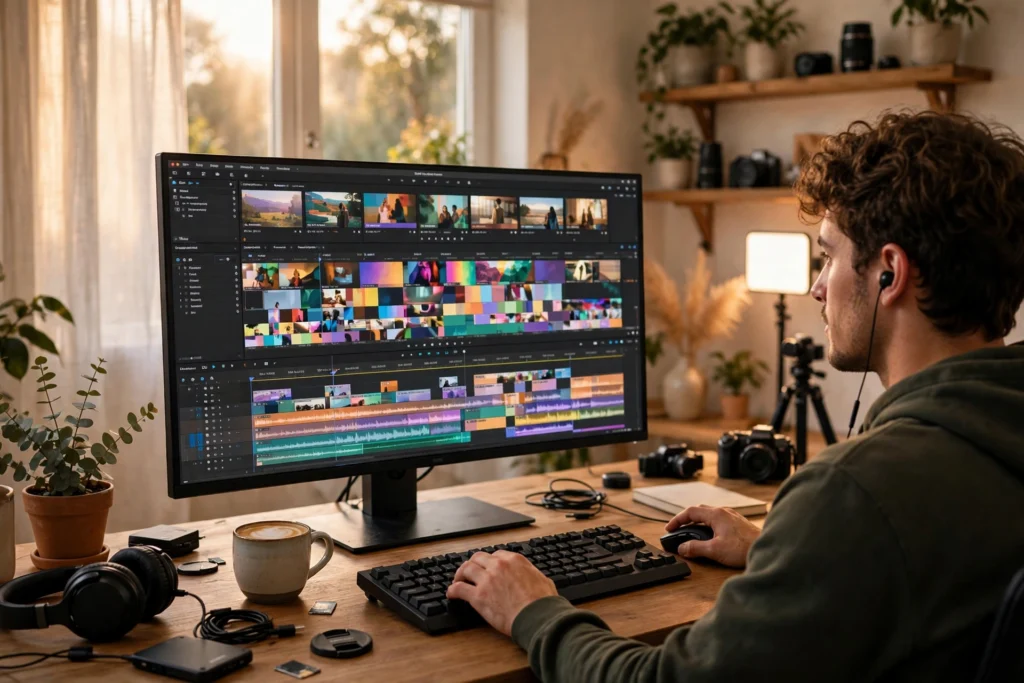

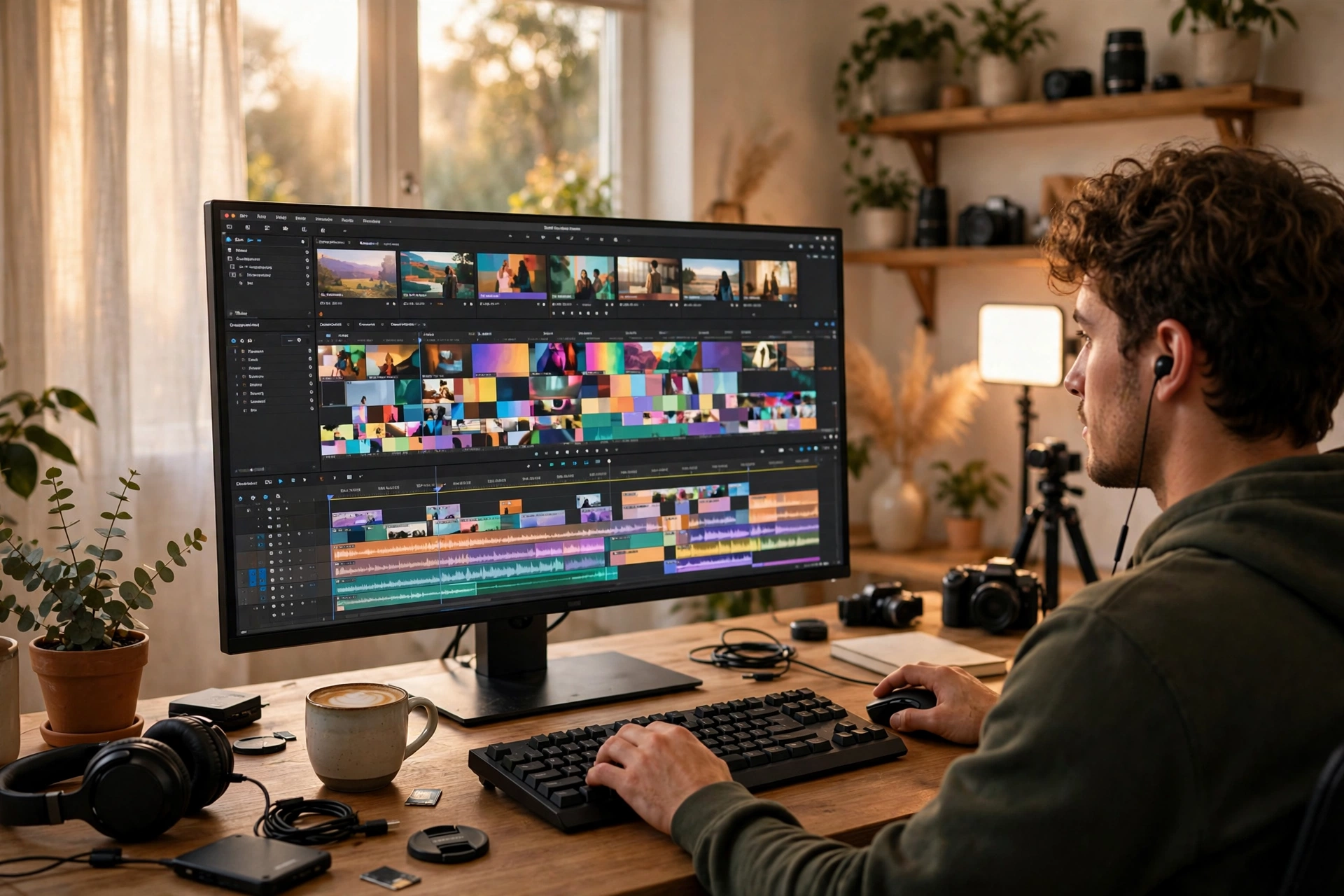
Two years ago, making a video meant a camera, lights, editing software, and a full afternoon. Now you can type a sentence like “a golden retriever running through autumn leaves” and watch a clip appear on your screen in under a minute. That shift is real, and it has changed who gets to make video. Small business owners, teachers, YouTubers, and marketers who never touched an editing timeline are now publishing clips every week.
The catch is that not every AI video generator does the same job. Some are built for short, dreamy clips from a text prompt. Others turn a script into a talking-head video with a digital presenter. A few are really editors with AI layered on top. Pick the wrong type and you will spend money on a tool that never fits your workflow, so it pays to know what each one is actually good at before you sign up.
This guide covers eight of the strongest options you can use in 2026. Each one has been judged on the same things: how good the video looks, how much control you get, how easy it is to learn, and what it costs to use properly. You will find honest trade-offs here too, because every tool on this list has at least one weak spot.
1. Runway
Runway is the name most people hear first, and there is a reason for that. Its Gen-4 model turns text and image prompts into short, cinematic clips that look far closer to real footage than most rivals manage. You can also extend a clip, restyle existing footage, or remove objects from a scene, which makes it useful for real editing work as well as pure generation.
The results shine when the prompt is simple and visual: a city street in the rain, a product rotating on a clean background, a landscape shot that slowly pans across a valley. Runway handles motion and lighting with a confidence that cheaper tools cannot match. Where it struggles is with people. Hands, faces, and complex movement can still look wrong, especially in longer clips, and the free tier runs out fast.
Runway works best for creators and marketers who want short, striking clips for social media, ads, or mood films. The paid plans are monthly subscriptions, and the cost climbs if you generate a lot of video. If you only need one or two clips a month, the free credits may be enough to test it properly before you commit.
2. Pika
Pika started as a fun text-to-video toy and has grown into a serious creative tool. Its 2.1 model is known for smooth, playful motion and a feature called Pikaffects, which lets you do odd, eye-catching things like making an object melt, inflate, or explode. It is the kind of tool that produces clips people actually stop and watch.
The interface is simple enough that a total beginner can make their first video in about ten minutes. You type a prompt, pick a style, and wait. The trade-off is control. Pika gives you less fine-grained direction than Runway, and the results can feel random if your prompt is vague. Short, specific prompts with one clear subject work best.
Pika is a strong pick for social media creators who want fun, shareable clips rather than polished commercials. It has a free tier with daily credits, and paid plans unlock longer clips and faster generation. If your goal is to stand out in a feed, Pika deserves a serious look.
3. Luma Dream Machine
Luma’s Dream Machine made a splash because it produces smooth, natural camera movement. Clips feel like they were shot by a real camera operator: slow pushes, gentle pans, and realistic physics when objects move. For anyone who has been frustrated by the jerky, dream-like motion of early AI video, Dream Machine feels like a step forward.
It handles both text prompts and image-to-video, and the image mode is where it really earns its keep. Upload a still photo and ask for a slow zoom or a gentle orbit, and the result often looks like a genuine video clip. That makes it handy for turning product photos or old images into moving content.
The free tier gives you a small number of generations each month, which is enough to learn the tool. Paid plans add more generations and faster queues. Dream Machine is best for creators who care about camera feel and realism, and who are happy to work with short clips of a few seconds each.
4. Synthesia
Synthesia does something completely different from the tools above. It does not generate dreamy scenes. It creates videos of a realistic digital presenter speaking your script, in more than 140 languages. You pick an avatar, paste your text, and get a finished presenter video in minutes.
That sounds like a gimmick, but it solves a real problem. Training videos, onboarding clips, and product explainers usually need a person on screen, and hiring a presenter for every update is slow and expensive. Synthesia lets a small team update a training video by editing text, not re-shooting. The avatars are not perfect — watch closely and you will spot the stiffness — but for corporate and educational use, they are good enough.
Synthesia is priced for businesses, with monthly plans that cost more than the creative tools on this list. It is not the right choice for YouTube entertainment, but if you make training or internal videos, it can pay for itself in a single project. A free demo lets you test the voices and avatars before you pay.
5. HeyGen
HeyGen sits in the same space as Synthesia but leans harder into personalisation. You can create a digital twin of yourself from a short video clip, then have that twin deliver any script you write. You can also translate a video into another language while keeping your own voice and lip movements in sync, which is genuinely impressive when you see it work.
The avatar quality is strong, and the lip-sync is among the best available in 2026. Creators use it for faceless YouTube channels, multilingual marketing, and personalised sales videos. The risk is the same as with any avatar tool: viewers can tell it is not real, so it works best for informational content rather than anything that needs real warmth or trust.
HeyGen has a free tier with limited credits, and paid plans scale with usage. If you want to be the face of your videos without filming every time, or you need the same video in five languages, HeyGen is one of the easiest ways to do it.
6. InVideo
InVideo takes a different approach again. Instead of generating raw clips, it builds a whole video from your idea: script, stock footage, music, captions, and voiceover, all assembled in a few minutes. You describe what you want, and its AI produces a draft you can then edit in a normal timeline editor.
This makes InVideo a good fit for people who need finished videos fast. A real estate agent can turn a listing into a video, a small shop can make a promo for a sale, and a marketer can draft a social ad before lunch. The footage comes from stock libraries, so it will never look as original as a Runway clip, but it looks professional and it is ready to post.
The free plan lets you try it with a watermark, and paid plans remove that and unlock more stock and voices. InVideo is best for volume: if you need several usable videos a week and you do not want to learn a complex editor, this is the practical choice.
7. Pictory
Pictory is built for one job: turning long content into short video. Give it a blog post, a webinar recording, or a Zoom call, and it pulls out the key moments and cuts them into short clips with captions. Bloggers and podcasters use it to squeeze social clips out of work they have already done.
It also works from a script, matching each line to relevant stock footage and adding a voiceover. The results are clean and consistent, if a little generic. You will not get the wow factor of a Runway generation, but you will get a usable video in ten minutes without touching an editor.
Pictory is a monthly subscription with a free trial. It makes the most sense for people who already produce long-form content and want to repurpose it. If you are starting from zero and want original visuals, look at the generation-first tools above instead.
8. Descript
Descript is technically an editor, but its AI features earn it a place here. You edit video by editing a transcript: delete a sentence from the text and the video cuts itself. Its AI can remove filler words, clean up audio, generate a voice clone for small fixes, and turn a recording into short social clips automatically.
That transcript-first workflow is a genuine time saver. A 30-minute recording that would take an hour to cut in a normal editor can be trimmed in fifteen minutes. The video generation itself is limited — Descript does not create scenes from prompts — but for anyone who records themselves talking, it is one of the most useful tools on this list.
Descript has a free tier and paid monthly plans. It pairs well with a generation tool like Runway: generate your B-roll with one, edit the talking parts with the other. If you make tutorials, podcasts, or talking-head videos, start here. You can learn more about editing in general in our guide to the Best Free Video Editing Software (9 Editors That Cost Nothing in 2026).
AI Video Generators Compared
| Tool | Best for | Free tier | Main weakness |
|---|---|---|---|
| Runway | Cinematic short clips | Yes, limited credits | People and hands can look off |
| Pika | Fun social clips | Yes, daily credits | Less control over details |
| Luma Dream Machine | Realistic camera motion | Yes, limited | Short clips only |
| Synthesia | Training and corporate video | Free demo | Avatars can feel stiff |
| HeyGen | Personal avatars and translation | Yes, limited credits | Not ideal for emotional content |
| InVideo | Fast finished videos | Yes, with watermark | Stock footage looks generic |
| Pictory | Repurposing long content | Free trial | Original visuals are limited |
| Descript | Editing talking-head video | Yes, limited | No text-to-video generation |
That table makes the split clear. The first three tools generate new footage, the next two generate presenters, and the last three help you assemble or edit finished videos. Most people need one from each group, not three from the same one.
How to Choose the Right AI Video Generator
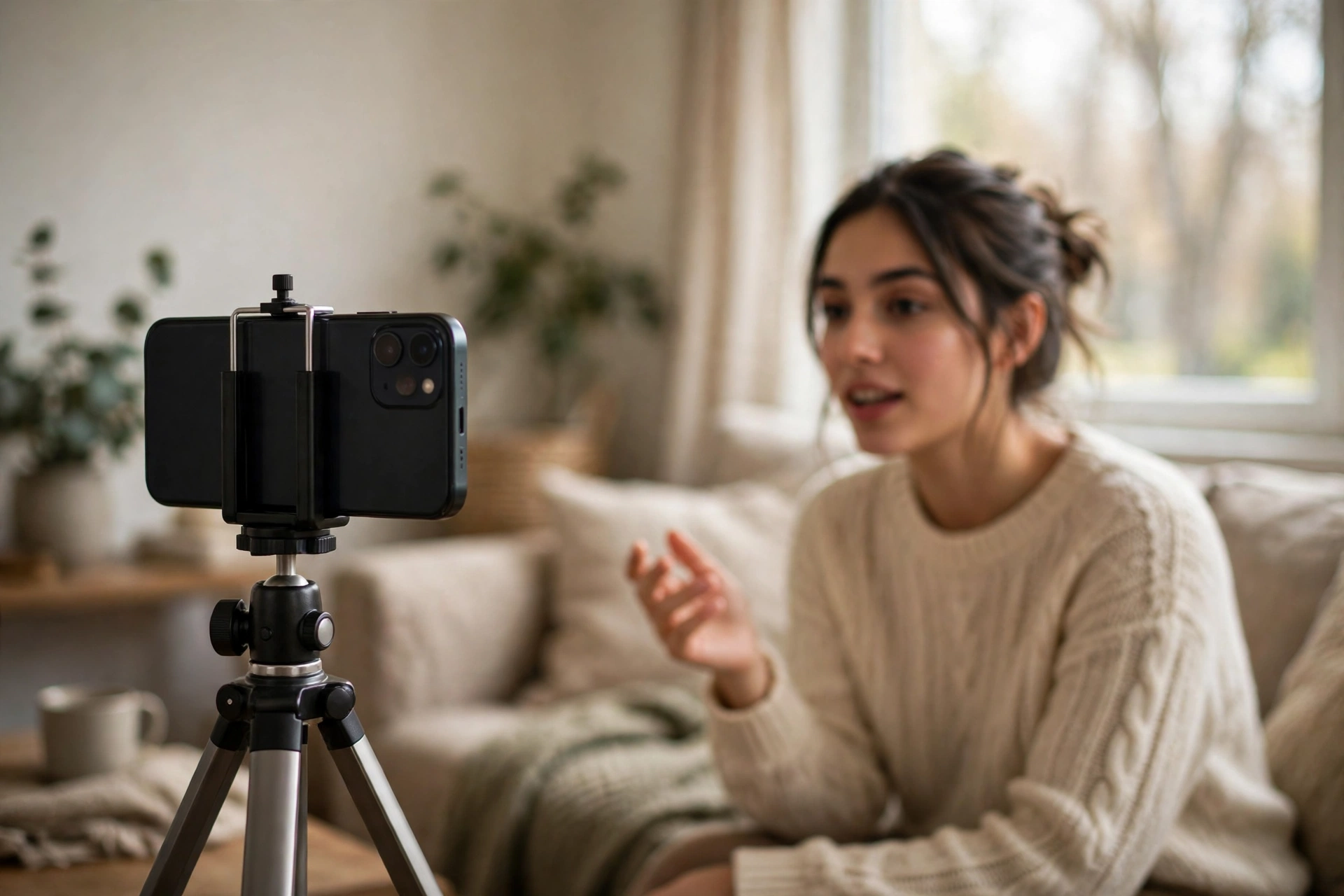
Start with the video you actually need to make, not the tool that looks most impressive in a demo. A demo clip of a dragon flying over a castle tells you nothing about whether the tool can make a decent product video for your shop. Write down the three kinds of video you will make most often, then match the tool to that list.
Next, test the free tier with a real project. Generate the exact clip you need, not a random test prompt. Check the hands and faces, listen to the voiceover, and watch the clip on your phone as well as your laptop. A tool that looks great on a desktop preview can fall apart on a small screen, and that is where most of your audience will see it.
Think about time as well as money. A cheap tool that takes you an hour per video is not cheaper than a pricier one that finishes in ten minutes. The tools in this guide all save time in different ways: Runway saves shoot time, Synthesia saves presenter time, and Descript saves editing time. Pick the saving that matters most to you.
Finally, check the rules on commercial use before you publish anything. Most paid plans include a commercial licence, but free tiers often do not, and the terms differ from tool to tool. If you plan to use AI video for client work or ads, read the licence page on the vendor’s own site. Students exploring these tools may also like our roundup of the Best AI Tools for Students (Study Smarter, Not Harder in 2026), which covers free options for study and projects.
Tips for Better Results
Good prompts are the biggest difference between a usable clip and a mess. Keep them short and visual: one subject, one action, one setting. “A red bicycle leaning against a brick wall in morning light” will beat a paragraph of adjectives almost every time. If the tool lets you set camera movement, use it — a slow push or pan hides a lot of small flaws.
Generate in short bursts. Clips of three to five seconds look far better than ten-second attempts, because the model has less time to drift. You can stitch short clips together in an editor and nobody will know the difference. Keep an eye on the wider tech picture too — our guide to Technology Trends 2026 (10 Trends That Will Shape Everyday Life) explains where AI video fits among the year’s bigger shifts.
Do not expect a finished video from a single prompt. The best results come from a loop: generate, watch, adjust the prompt, generate again. Three quick rounds usually beat one long, careful attempt. Save the prompts that work, because you will want them again next month.

FAQ
What is the best AI video generator in 2026?
There is no single winner, because the tools do different jobs. Runway leads for cinematic text-to-video clips, HeyGen leads for personal avatars, and Descript leads for editing talking-head recordings. Pick based on the kind of video you make most often, and test the free tier with a real project before paying.
Can AI video generators make long videos?
Not really, not yet. Most tools generate clips of a few seconds each, and you stitch them together in an editor. Avatar tools like Synthesia and HeyGen can produce longer presenter videos because the presenter stays still, but scene-based generation still works best in short bursts.
Are AI-generated videos free to use commercially?
It depends on the plan. Paid plans usually include a commercial licence, while free tiers often limit you to personal use or add a watermark. Always check the licence terms on the vendor’s website before using a clip in an ad or for a client.
Do AI video generators replace video editors?
No. They replace parts of the job — shooting B-roll, making a first draft, cutting filler words — but you still need an editor to assemble clips, fix timing, and add music and captions. Most creators use a generator and an editor together.
Which AI video generator is easiest for beginners?
Pika and InVideo are the friendliest starting points. Pika needs only a short prompt, and InVideo builds a whole draft video from your idea. Both have free tiers, so you can learn the basics without spending anything.
Conclusion
AI video has moved past the demo stage. Runway and Luma can produce clips that look genuinely good, HeyGen and Synthesia can put a presenter on screen without a camera, and tools like InVideo, Pictory, and Descript turn the whole process into something a single person can finish in an afternoon. The trick is matching the tool to the job: generate footage with one, present with another, and edit with a third.
Start with the free tier of the tool that fits your most common video, run one real project through it, and judge the result on your phone, where your audience will see it. If it saves you time and looks good enough to publish, you have found your tool. If it does not, the next one on this list probably will.