
Everyone has a photo that matters and looks terrible. A childhood picture that came out blurry, a wedding shot taken in bad light, a product photo that is just soft enough to look unprofessional. For years the only fix was a skilled editor and a lot of patience. AI photo enhancers have changed that. Upload a flawed photo and, in seconds, you get back a sharper, brighter, cleaner version — sometimes so good you forget the original was ever a problem.
The results vary a lot, though. Some tools genuinely recover detail. Others just smooth everything into a waxy, plastic look that is worse than the blur. Some are built for old family photos, others for product shots, and a few are really just filters with a fancy name. Knowing which tool fits your photo is the difference between a rescue and a ruin.
This guide compares seven of the best AI photo enhancers you can use in 2026. Each one is judged on how well it fixes real problems, how natural the result looks, how easy it is to use, and what it costs.
1. Topaz Photo AI
Topaz Photo AI is the professional’s choice, and it earns that title. It combines sharpening, noise removal, and upscaling in one tool, and it does each job with a care that free tools cannot match. A noisy night shot becomes clean without losing texture, a slightly soft portrait becomes crisp without looking over-processed, and a small image can be enlarged several times with real detail rather than a smear.
The key is control. Topaz lets you adjust each effect separately and preview the result before you commit, so you can fix the noise without touching the sharpness, or upscale without oversharpening the background. That matters, because the difference between a good enhancement and a bad one is usually restraint.
Topaz is a one-time purchase rather than a monthly subscription, which makes it good value if you enhance photos often. It suits photographers, sellers, and anyone who needs reliable, high-quality results. Beginners can use the autopilot mode and let it decide the settings.
2. Remini
Remini is the app that made AI photo enhancement famous, and it is still the easiest way to fix a photo on your phone. Upload a blurry selfie or an old family picture, wait a few seconds, and get back a much sharper version. Its face enhancement is particularly strong — it can rebuild a soft, low-resolution face into something that looks like a proper portrait.
That face rebuilding is also the risk. Remini sometimes changes a face too much, smoothing skin and altering features until the person looks like a slightly different version of themselves. For a social media post that is fine. For a precious family photo, check the result closely before you replace the original.
Remini is a mobile app with a free tier that adds a watermark or limits daily enhancements, and paid plans remove those limits. It suits anyone who wants quick fixes on their phone, especially for old photos and selfies. Keep the original file safe — never overwrite it with the enhanced version.
3. Let’s Enhance
Let’s Enhance is built for upscaling: taking a small image and making it bigger without it falling apart. It is popular with sellers, designers, and print shops, because a 500-pixel product photo will not survive on a website banner or a printed poster. Let’s Enhance can enlarge it several times while adding plausible detail, and it handles colours and lighting well.
It also has tools for fixing light and colour, and a background remover for product shots. The interface is simple — upload, pick your settings, download — and the results are consistent. The free tier gives you a few credits to test it, and paid plans are based on how many images you process.
Let’s Enhance suits online sellers, designers, and anyone who needs small images made big. If your main problem is blur rather than size, Topaz or Remini may serve you better.
4. Adobe Photoshop
Photoshop is not just an enhancer, but its AI features have become some of the strongest available. Neural Filters can smooth skin, fix a smile, or sharpen a portrait, and the Super Resolution feature in Camera Raw can enlarge an image with impressive detail. The newer Generative Fill can even rebuild missing parts of a photo.
The advantage is that enhancement is one part of a complete editor. You can sharpen a photo, fix the colour, remove an unwanted object, and export it for print or web, all in one place. The downside is cost and complexity: Photoshop is a monthly subscription, and it takes time to learn. If you only need to fix a few photos, a simpler tool will be faster.
Photoshop suits photographers and designers who already use Adobe products. If you edit photos regularly, its AI tools are a strong reason to keep the subscription. Casual users should try the simpler tools on this list first.
5. Upscayl
Upscayl is the free, open-source option, and it is better than its price suggests. It runs on your own computer, upscales images using AI models, and costs nothing. There is no upload to a server, which means your photos stay private, and there is no monthly bill.
The results are good for upscaling, though the interface is basic and the face enhancement is not as strong as Remini or Topaz. You also need a reasonably capable computer, because the processing happens locally. But for a free tool, it is remarkably capable, and the privacy angle is a genuine advantage.
Upscayl suits budget-conscious users, privacy-minded people, and anyone who upscales a lot of images. It is not the prettiest tool, but it is honest, free, and yours to keep.
6. VanceAI
VanceAI is a web-based toolkit with a separate AI tool for each job: one for sharpening, one for removing noise, one for upscaling, one for restoring old photos, and one for removing backgrounds. That split is useful, because you can pick exactly the fix your photo needs instead of applying everything at once.
The old photo restoration tool is a standout. It can clean up scratches, fix faded colours, and sharpen faces in scanned prints, which makes it a good pick for family archives. The results are generally natural, though heavy noise removal can smooth fine detail if you push it too far. The free tier gives you a few credits a month, and paid plans add more.
VanceAI suits people with a specific problem — a batch of old photos, a set of noisy shots, a folder of small images — who want a targeted fix without installing software. It runs in the browser, so it works on any computer.
7. Fotor
Fotor is a friendly, all-in-one photo editor with strong AI enhancement built in. Its one-click enhancer fixes lighting, colour, and sharpness in a single tap, and it has dedicated tools for portraits, old photos, and background removal. The interface is simple enough for anyone to use, and it works in the browser and on mobile.
The one-click results are good for everyday photos — brighter, sharper, more vivid — though they can be a little heavy-handed on already decent shots. The free tier covers basic enhancement with ads, and the Pro plan unlocks the full AI tools and removes ads. Fotor also has templates and design tools, so you can enhance a photo and turn it into a social post in the same app.
Fotor suits casual users who want quick, pleasant results without learning an editor. It pairs well with a proper photo editor for the finishing touches — our guide to the Best Photo Editing Apps (10 Free and Easy Apps for Better Photos) covers the best of those.
AI Photo Enhancers Compared
| Tool | Best for | Free tier | Main weakness |
|---|---|---|---|
| Topaz Photo AI | Professional quality, all-round | Free trial | One-time cost, needs a decent PC |
| Remini | Quick phone fixes, faces | Yes, limited | Can change faces too much |
| Let’s Enhance | Upscaling small images | Yes, few credits | Less strong on blur alone |
| Adobe Photoshop | Full editing with AI | Free trial | Monthly cost, learning curve |
| Upscayl | Free, private upscaling | Yes, fully free | Basic interface, weaker faces |
| VanceAI | Old photo restoration | Yes, few credits | Can over-smooth fine detail |
| Fotor | Quick one-click fixes | Yes, with ads | Can be heavy-handed |
Topaz wins on quality, Remini wins on convenience, Upscayl wins on price, and VanceAI wins on old photos. Most people need one desktop tool and one phone app, not all seven.
How to Choose the Right Photo Enhancer
Start with the problem, not the tool. A blurry photo needs sharpening, and Topaz or Remini handle that best. A small photo needs upscaling, which is Let’s Enhance or Upscayl territory. An old, scratched print needs restoration, which is VanceAI’s strength. A photo that is fine but dull needs a one-click fix from Fotor. Match the tool to the flaw and you will get better results with less effort.
Next, test with your worst photo, not your best. Run the same damaged image through two tools and compare them side by side at full size. Look at the faces, the hair, the text in the background, and the fine textures. The tool that preserves those details is the one to trust with your important photos.
Think about privacy as well. Free web tools process your photo on their servers, which is fine for a product shot but less comfortable for a family photo or an ID picture. Tools that run locally, like Topaz and Upscayl, keep your images on your own computer. If the photo is personal, that matters.
Finally, keep the original. Never overwrite your only copy of a photo with an enhanced version. AI enhancement can go wrong — a face can change, a detail can vanish — and if you have already replaced the original, there is no going back. Save the enhanced copy as a new file, and keep the original safe. If you want to understand how AI creates images in the first place, our guide AI Image Generator (How It Works and the Best Free Tools to Try) explains the technology in plain English.
Tips for Better Results
Enhance in small steps. Running a photo through maximum sharpening, maximum noise removal, and maximum upscaling all at once usually produces a waxy, artificial result. Fix the biggest problem first, look at the result, then decide if it needs more. Restraint is the difference between a rescued photo and a ruined one.
Be careful with faces. AI face enhancement is powerful, but it can smooth away the very things that make a person recognisable — freckles, wrinkles, the shape of a smile. If a face starts to look like a stranger, dial the effect back or try a different tool. And if you want free tools to experiment with, our roundup of the Best Free AI Tools (12 Powerful Tools You Can Use Without Paying) includes several photo helpers worth trying.
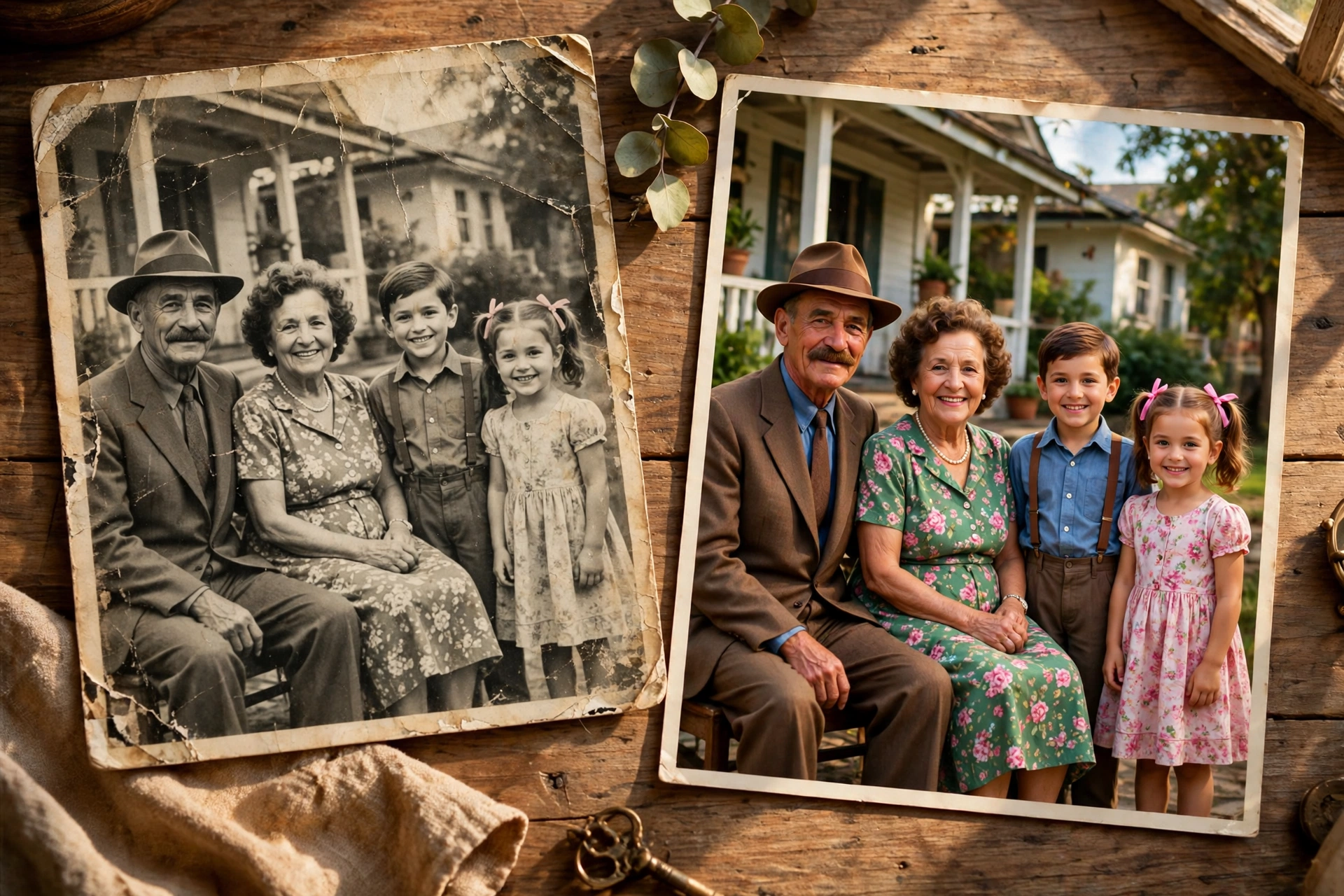
Restoring Old Family Photos Step by Step
Old printed photos are the most rewarding thing you can enhance, and they deserve a careful approach. Start by scanning the print properly. Use a flatbed scanner if you have one, at 600 dpi or higher, and clean the glass first — dust on the scanner becomes a permanent part of the image. If you only have a phone, use a scanning app in good, even light, and hold the phone steady. A bad scan limits everything that comes after, no matter how good the AI tool is.
Next, fix the big problems before you touch the AI enhancer. Crop out the white border if it is damaged, straighten the image, and remove any obvious dust spots by hand if your editor allows it. Then run the photo through a restoration tool like VanceAI or Remini, starting with a gentle setting. The goal is to recover the photo, not to rebuild it — a light touch keeps the faces looking like the people you remember.
After enhancement, check the result against the original. Look at the faces first: do they still look like your family, or has the AI smoothed them into strangers? Then check the details: the pattern on a dress, the text on a sign, the shape of a smile. If anything looks wrong, try a lower setting or a different tool. Sometimes the best result comes from enhancing the photo twice at a gentle setting rather than once at maximum.
Finally, save the enhanced photo as a new file and store the original scan somewhere safe, ideally in two places. Print the best ones too — a restored photo on the wall is worth more than a perfect file on a hard drive. And share the result with the family: a photo that sat in a drawer for forty years deserves to be seen again.
FAQ
What is the best AI photo enhancer in 2026?
Topaz Photo AI is the best overall, with the highest quality sharpening, noise removal, and upscaling. Remini is best for quick phone fixes, Upscayl is the best free option, and VanceAI is best for restoring old printed photos.
Can AI really fix a blurry photo?
It can improve a blurry photo a lot, especially if the blur is mild. It cannot recover detail that was never captured — a badly out-of-focus shot will stay soft, though it will look better than the original. The best results come from photos that are slightly soft, not completely blurred.
Are AI photo enhancers free?
Upscayl is completely free. Remini, Fotor, and VanceAI have free tiers with limits, and Let’s Enhance gives you a few free credits. Topaz is a one-time purchase and Photoshop is a monthly subscription, though both offer trials.
Will AI enhancement change how a person looks?
It can, especially the face-enhancement tools. Remini and similar apps sometimes smooth skin and alter features, which can make a person look younger or slightly different. Check the result closely, and use a gentler setting for photos that matter.
Can AI photo enhancers enlarge a small image?
Yes. Tools like Topaz, Let’s Enhance, and Upscayl can enlarge an image several times while adding plausible detail. The result is much better than a simple resize, though it will never be as sharp as a photo taken at full size in the first place.
Conclusion
AI photo enhancers have turned photo rescue from a specialist skill into something anyone can do in a minute. Topaz leads on quality, Remini leads on convenience, Upscayl leads on price and privacy, and VanceAI leads on old photos. The rest fill useful gaps, from Photoshop’s full editing power to Fotor’s one-click simplicity. Before you pay for anything, run the same photo through two or three free tools and compare the results side by side — the differences are often bigger than the price gap suggests. Old family photos deserve a little patience: enhance a copy, keep the original untouched, and save the result at the highest quality the tool allows. And if a photo matters to you, print one copy too, because a file on a phone is easy to lose and a print on a shelf lasts.
Pick the tool that matches your photo’s actual problem, test it on your worst image first, and always keep the original safe. Do that, and the photo you thought was lost might turn out to be one of your favourites.
Sources
Topaz Labs — Photo AI official page
Wikipedia — Image upscaling