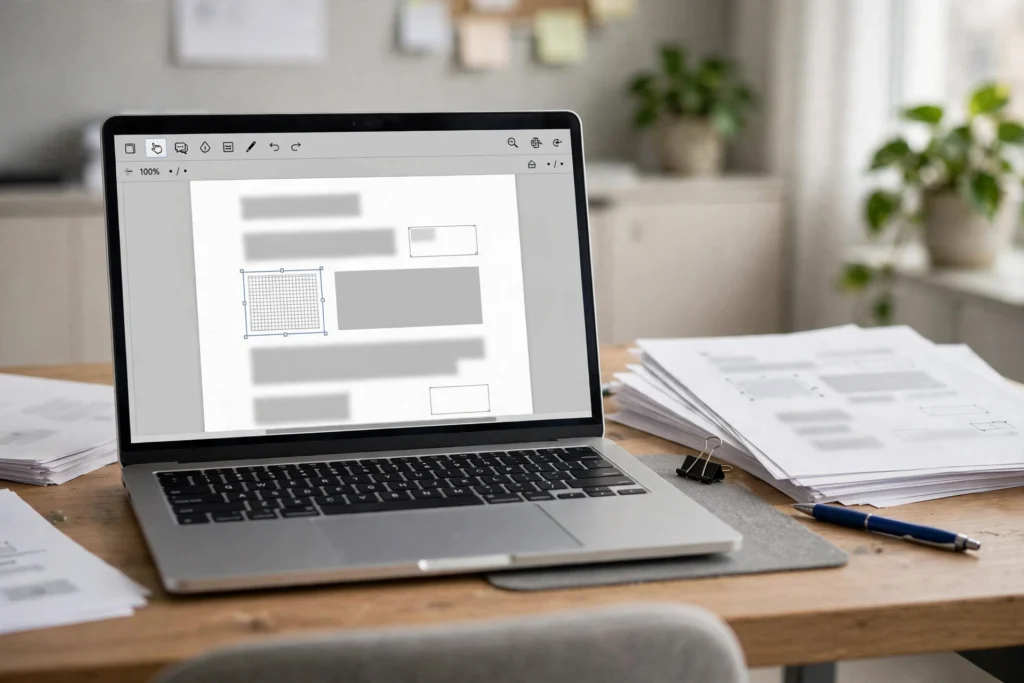

PDFs are everywhere — contracts, forms, school assignments, invoices, e-books — and sooner or later you need to change one. Fix a typo, sign a form, merge two files, pull a page out, or fill in a form without printing it. The free reader that came with your computer can open a PDF, but editing one is another matter entirely.
The good news is that PDF editors have become cheaper and easier. In 2026 you can edit a PDF in your browser for free, sign documents on your phone, or buy a one-time desktop app that does almost everything Adobe does for a fraction of the price. The bad news is that the market is crowded with tools that look alike and behave very differently — some watermark your files, some upload everything to a server, and some charge monthly for features you use twice a year.
We tested eight of the best PDF editors in 2026 on Windows, Mac, web and mobile, judging them on editing, signing, merging, converting, ease of use, privacy and price. Whether you edit PDFs daily or twice a year, one of these will fit.
1. Adobe Acrobat Pro
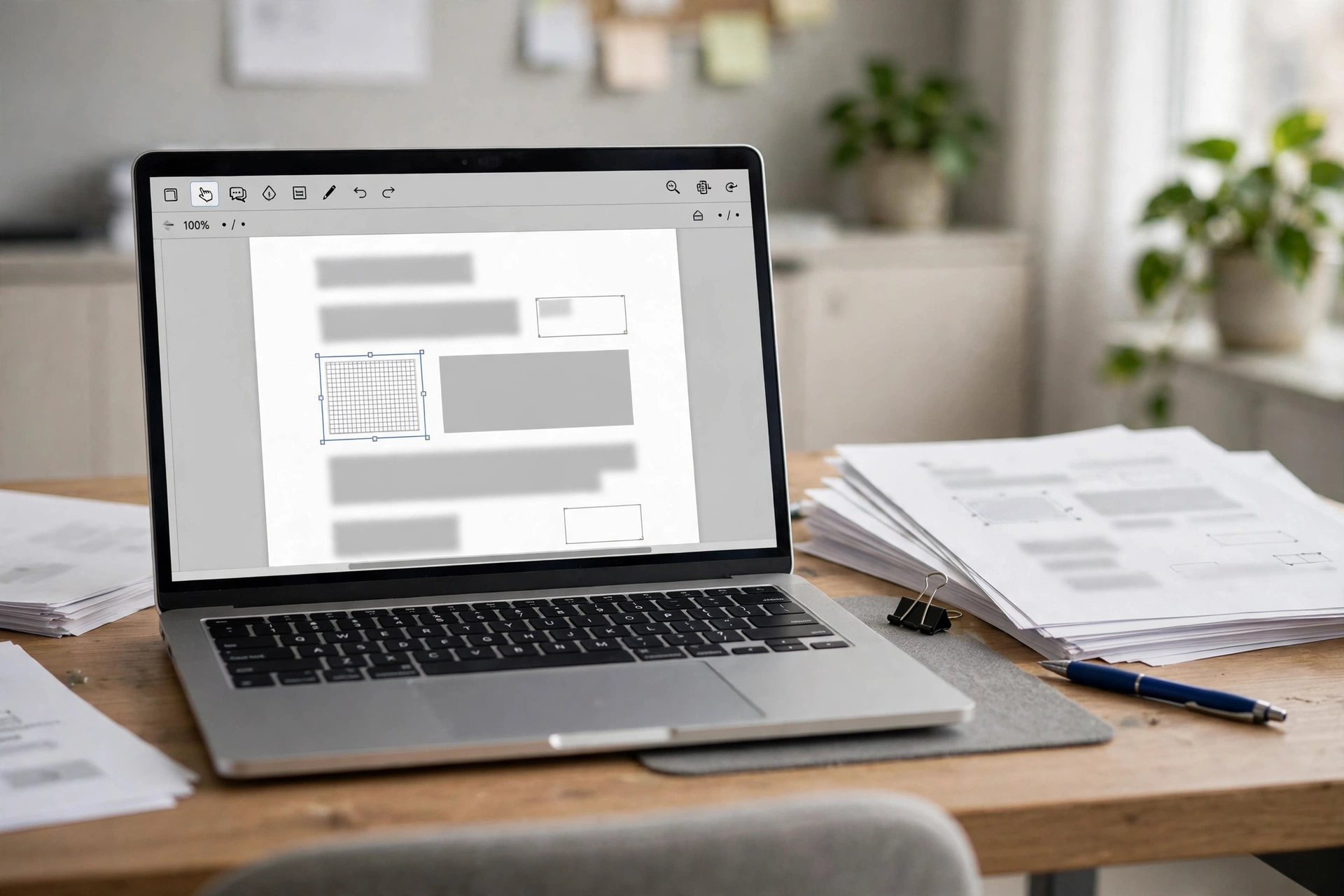
Adobe invented the PDF, and Acrobat Pro remains the most complete editor you can buy. It edits text and images directly in the document, converts PDFs to Word and Excel with the best accuracy in the business, handles forms, redaction, Bates numbering and accessibility checks, and its e-signature tools are the standard for business. The interface is polished, the mobile apps are strong, and almost every other tool is measured against it.
It is also the most expensive option here, sold as a subscription, and it is more powerful than most people need. If you edit PDFs every day for work — especially legal, publishing or administrative work — Acrobat Pro is the tool that never lets you down. If you sign a form twice a year, it is overkill, and one of the cheaper options below will serve you better.
2. Foxit PDF Editor
Foxit is the long-standing rival to Acrobat, and it does nearly everything Acrobat does for less money. Text and image editing, form creation, signing, merging, splitting, OCR and redaction are all here, and the interface will feel familiar to anyone who has used Acrobat. It runs on Windows, Mac, web and mobile, and the one-time purchase option — rare in 2026 — appeals to people who dislike subscriptions.
Conversion accuracy is a small step behind Acrobat’s, and the interface, while capable, is busier than the cleanest rivals. Foxit also offers a free reader with basic editing, which is a good way to test it. For a business that needs Acrobat-level power without Acrobat-level pricing, Foxit is the most sensible alternative on this list.
3. Wondershare PDFelement
PDFelement is the best balance of power and price for most users. It edits text and images, converts files, merges and splits, adds signatures, fills forms and runs OCR — the full toolkit — in an interface that is noticeably friendlier than Acrobat’s or Foxit’s. It works on Windows, Mac, iOS and Android, and the one-time purchase option makes the long-term cost easy to predict.
It is not quite as precise as Acrobat on complex layouts, and some advanced features like batch processing are stronger in the pricier Pro version. But for a small business, a student or a home office that needs a real editor without a monthly bill, PDFelement is the sweet spot: capable, affordable and easy to learn.
4. Nitro PDF Pro
Nitro is the quiet professional of this list, popular in offices that process a lot of documents. It edits, converts, signs, merges and batches with a clean ribbon interface that will feel familiar to Microsoft Office users. Its conversion to Word and Excel is strong, its batch tools handle dozens of files at once, and it integrates with cloud storage services. It runs on Windows and Mac, with mobile apps for signing on the go.
Nitro is business software at business prices, and there is no free tier beyond a trial. The Mac version has historically lagged behind the Windows version in features, so Mac users should check the current feature list before buying. For an office that lives in PDFs all day, Nitro’s speed and batch tools earn their keep.
5. Smallpdf
Smallpdf is the web-based editor for people who want things done in two minutes. Open the site, drop in a file, and you can merge, split, compress, convert, sign and edit — all in the browser, with nothing to install. The interface is the simplest here, the free tier covers a few tasks a day, and the paid plan adds unlimited use and a desktop app. It works on any device with a browser.
The trade-offs are privacy and depth. Your files are uploaded to Smallpdf’s servers, which matters for sensitive documents, and the editing tools are lighter than a desktop app — you can add text and shapes, but you cannot reflow a complex document. For quick, occasional jobs on a shared computer, Smallpdf is the fastest answer. For confidential files, use a desktop editor instead.
6. Sejda PDF Editor
Sejda is the web editor for people who want more control than Smallpdf offers without installing anything. Its browser tools cover editing, merging, splitting, signing, form filling, watermarking and redaction, and the free tier allows a few tasks per hour with a fair file-size limit. The interface is clear, the tools are well organised, and there is a desktop version if you prefer to keep files local.
Like all web editors, it uploads your files to a server, and heavy editing of long documents is slower than in a desktop app. The free tier’s hourly limit can interrupt a big job. But for students and occasional users who want a capable free editor without installing software, Sejda is the best browser option on this list.
7. PDF Expert
PDF Expert is the best PDF editor on Apple devices, full stop. Made by Readdle, it is fast, beautiful and deeply integrated with iPhone, iPad and Mac — including Apple Pencil support for annotating and signing by hand. It edits text, merges and splits, fills forms, signs documents and reads beautifully, and it syncs with iCloud and other cloud services. For anyone who reads and marks up PDFs on an iPad, it is the gold standard.
It is Apple-only, and the full feature set needs a subscription. Windows and Android users should look elsewhere. But if your workflow is an iPad and a pencil — students, lawyers, researchers, anyone who annotates — PDF Expert is the app that makes the iPad feel like it was designed for PDFs, because in a sense it was.
8. LibreOffice Draw
LibreOffice Draw is the free, open-source option, and it is the only editor here that costs nothing at all. It opens PDFs and lets you edit text, move objects, add shapes and annotations, and export the result as a new PDF. It runs on Windows, Mac and Linux, it never uploads your files anywhere, and it is part of the free LibreOffice office suite.
Draw is not a true PDF editor — it imports the PDF as a drawing, so complex layouts can shift, fonts can change, and multi-page editing is clumsy. It is best for small fixes: correcting a line of text, adding a note, moving an element. For a free tool that keeps everything on your computer, it is genuinely useful — just do not expect it to replace Acrobat on a long, complex document.
| Tool | Platforms | Price | Best for |
|---|---|---|---|
| Adobe Acrobat Pro | Windows, Mac, Web, Mobile | Paid subscription | Professional, daily use |
| Foxit PDF Editor | Windows, Mac, Web, Mobile | Paid / one-time | Acrobat alternative |
| PDFelement | Windows, Mac, iOS, Android | Paid / one-time | Best value desktop |
| Nitro PDF Pro | Windows, Mac | Paid | Office batch work |
| Smallpdf | Web, Mobile | Free / paid | Quick browser jobs |
| Sejda | Web, Desktop | Free / paid | Free browser editing |
| PDF Expert | iPhone, iPad, Mac | Paid subscription | Apple users, iPad |
| LibreOffice Draw | Windows, Mac, Linux | Free | Free, offline fixes |
How to Choose the Best PDF Editor
Start with how often you edit PDFs. Twice a year? A free web tool like Sejda or Smallpdf is enough — do not pay a subscription for a job you do twice. Weekly? A desktop app like PDFelement or Foxit will save you time and keep your files private. Daily, for work? Acrobat Pro or Nitro is the professional answer, and the cost is a business expense that pays for itself.
Next, think about privacy. If your PDFs contain contracts, medical records or financial details, prefer a desktop editor that processes files on your own computer. Web editors are convenient, but your document travels to a server and back — fine for a school handout, wrong for a signed contract. Check the privacy policy of any web tool before uploading anything sensitive.
Check the features you actually need. Most people need three things: editing text, signing, and merging or splitting. Almost every tool here does those. Fewer people need OCR, redaction, Bates numbering or batch processing — if you do, check carefully, because those are the features that separate the cheap tools from the pro ones. And if you work on an iPhone, our iPhone Hidden Features (18 Secret Tricks You Should Try) covers the built-in tools that pair well with a good PDF app. For keeping your documents safe, How to Back Up Your Computer (A Simple Step-by-Step Guide) is worth a read, and students may also like Best AI Tools for Students (Study Smarter, Not Harder in 2026).
Common Mistakes to Avoid
The first mistake is editing the wrong file. It sounds obvious, but it happens constantly: you edit a copy of the PDF, save it, and send the original — or you edit the original and lose the clean version. Before you change anything, save a copy with a clear name and the date, and edit the copy. Cloud tools make this worse, because the file you opened from an email attachment is not always the file you think it is. Get into the habit of checking the filename and the location before you start.
The second mistake is trusting a free web editor with a sensitive document. That tenancy agreement, medical form or signed contract should never pass through a random website’s server, no matter how professional the site looks. For anything with personal data, signatures or money involved, use a desktop editor that processes the file on your own computer. The convenience of a browser upload is not worth the risk of your document sitting on a server you do not control, in a country whose laws you do not know.
The third mistake is flattening a form you still need to fill in. Many editors let you “flatten” a PDF — turning editable fields into fixed text — which is useful for sending a finished form but fatal if you flatten the blank original and then need to type into it. Always keep the fillable original, and flatten only a copy. And the final mistake is ignoring file size: a scanned PDF full of images can run to tens of megabytes, which bounces off email limits and fills up inboxes. Compress the file before sending it — most editors here include a compress tool, and a smaller file is kinder to everyone who receives it.
FAQ
What is the best free PDF editor?
Sejda is the best free PDF editor for most people — its browser tools cover editing, merging, signing and splitting with a fair free tier. LibreOffice Draw is the best free desktop option and keeps your files offline, while Smallpdf is the fastest for quick jobs. For a truly free, no-limits editor, there is no perfect option — the capable free tools all have limits, and the unlimited ones are paid.
Can I edit a PDF without Adobe Acrobat?
Yes. Foxit, PDFelement, Nitro, PDF Expert and even free tools like Sejda and LibreOffice Draw all edit PDFs without Adobe software. Acrobat remains the most complete editor, but for everyday edits — fixing text, signing, merging — the alternatives are more than capable, and several cost far less.
Is it safe to use a free online PDF editor?
For ordinary documents, yes — reputable services like Smallpdf and Sejda delete uploaded files after a set period and use encrypted connections. For sensitive documents such as contracts, medical records or financial statements, prefer a desktop editor that never uploads your file. Always check the service’s privacy policy before uploading anything confidential.
How do I sign a PDF on my phone?
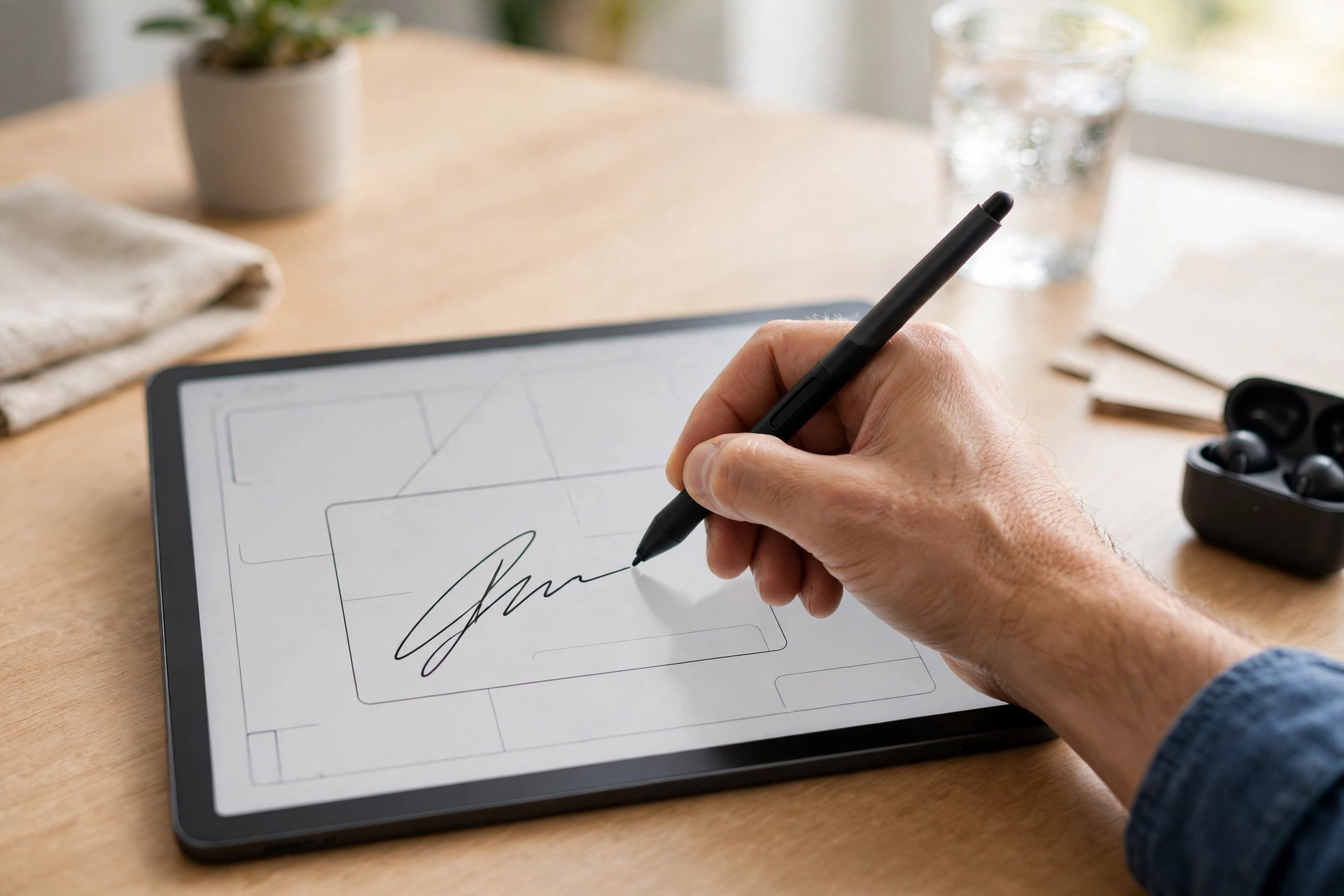
Open the PDF in an app like Adobe Acrobat Reader, PDF Expert or your phone’s built-in markup tool, tap the signature option, and draw your signature with your finger or stylus. You can save the signature for reuse. On iPhone, you can also sign directly from the Mail or Files app using Markup — no extra app needed.
What is OCR, and do I need it?
OCR (optical character recognition) turns a scanned image of text into real, selectable text you can edit and search. You need it if you work with scanned documents — a scanned contract you want to edit, or a pile of paper forms you want to make searchable. Acrobat, Foxit, PDFelement and Nitro all include OCR; the free web tools generally do not.
Conclusion
The best PDF editor in 2026 depends on how you work. Adobe Acrobat Pro is still the most complete tool for professionals, Foxit is the best-priced alternative, and PDFelement is the sweet spot for most people who want a real desktop editor. Smallpdf and Sejda cover quick browser jobs for free, PDF Expert rules the iPad, and LibreOffice Draw handles small offline fixes for nothing. If you only edit PDFs once in a while, a free browser tool is plenty — paying for a yearly plan you open twice is money wasted. But if you sign, fill and merge files every week, a proper desktop editor pays for itself in saved frustration alone. And always keep a copy of the original file before you edit, because a flattened PDF cannot be unflattened once you have saved over it.
Match the tool to the frequency: free web tools for occasional jobs, a one-time desktop app for regular use, and a pro subscription only if PDFs are part of your daily work. And keep sensitive documents on your own computer, not in a browser upload. Get that right and the next PDF that needs fixing will take two minutes instead of twenty.
One last piece of advice: keep a small toolkit rather than a single app. A free web editor for quick jobs on a borrowed computer, a desktop editor for real work, and the markup tool on your phone for signing on the go — together they cover every situation for less than one pro subscription. Learn the three things you do most — edit text, sign, merge — in whichever app you choose, and learn where its export and compress buttons live. PDFs are not going away, and a person who can fix one in two minutes will always have an edge over the person who prints it out, crosses things out by hand, and scans it back in. Choose your tool, keep your originals, and never upload anything you would not want a stranger to read.